

- Teachers can save valuable grading time by using Gemini to analyze student writing while using a Google for Education account to maintain privacy and compliance.
- You can easily paste student Google Doc links directly from your automatically generated Google Classroom Drive folder into Gemini alongside your rubric.
- Alternatively you can upload your rubric and student assignments directly into Gemini Notebook to quickly identify class trends and generate individual scores.
Evaluating student writing can be an incredibly time consuming task. Many educators find themselves working well beyond contracted hours just to keep up with grading essays and reflections. Fortunately, there is a practical hack to expedite the analysis and scoring of student writing using Gemini. This approach helps you gain quick insights into how your students are performing so you can efficiently prepare for targeted interventions and extensions.
Before starting, always remember to use your Google for Education account. This is a vital step to ensure your work remains completely COPPA and FERPA compliant. Additionally, you must always vet all generated responses using your professional teacher experience and judgment. Do not offload your teacher thinking to Gemini. It is important to verify all responses to maintain the integrity of your feedback.
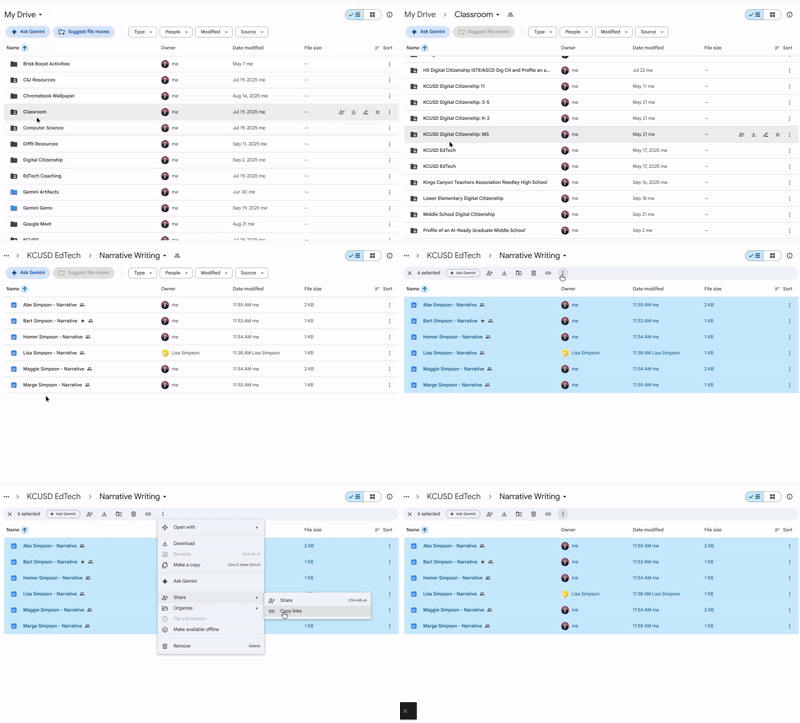
The first method combines Google Classroom and Gemini. If you were not aware, every Google Classroom assignment automatically has a corresponding folder in Google Drive. When you create an assignment, a folder is automatically created in Drive within your dedicated Classroom folder. If your students are submitting their writing on Google Docs via Google Classroom, open the Classroom folder in Drive, open the folder for your specific class, and then find and open the folder for the specific writing assignment. Select all the documents in the folder, click the three dots at the top or right click, click Share, and copy the links.
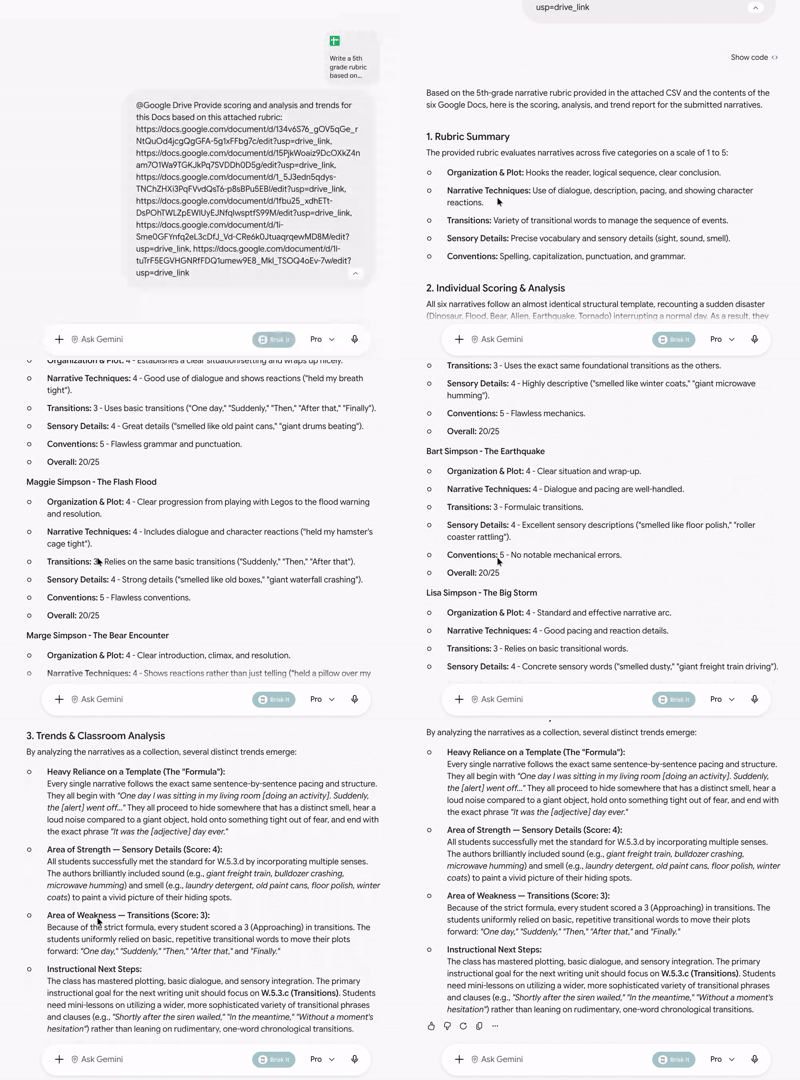
Next, go to Gemini. Attach your rubric and prompt the tool to provide overall trends, analysis, and individual scoring for the linked documents. Finally, paste in all the links you recently copied from Drive. In just a few moments, those linked documents will be scored according to your rubric. The output will also show overall patterns and trends from the student writing overall.
Another great method is to create a new notebook in Gemini Notebook, which was formerly known as NotebookLM. Simply add your rubric and the student writing documents as your sources. Just like in the standard Gemini interface, you can prompt the notebook for trends, analysis, and individual scoring. Both of these strategies will help you support your students while preserving your valuable time.
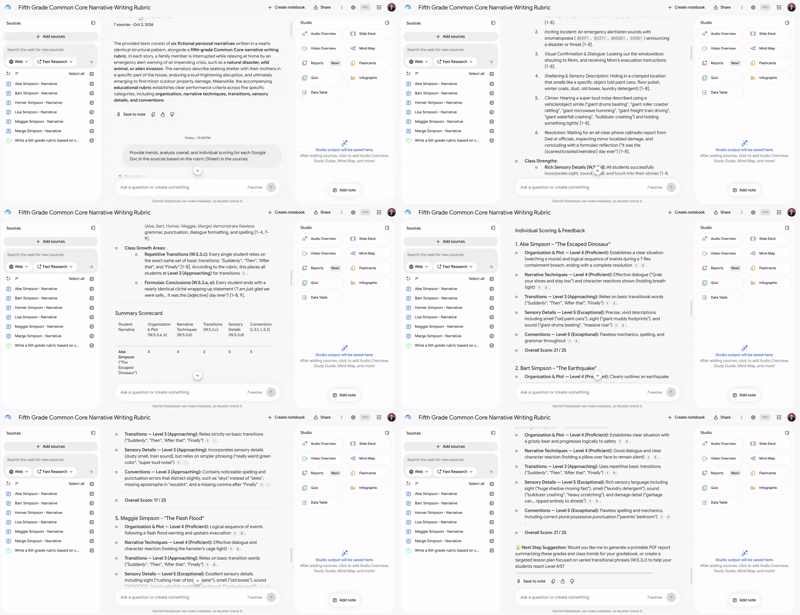
This blog post was drafted with the help of Google Gemini to help organize and flesh out my thoughts and ideas regarding how to utilize Gemini and or Gemini Notebook to help evaluate student writing and see trends. I also used Gemini Notebook to generate a brief audio overview, perfect for those who want to listen and learn on the go.
If you enjoy this blog, you’ll love our new book, History Matters in an AI Era. Available now on Amazon, this book shares practical, research-based strategies for integrating technology into history lessons. You’ll learn how to use technology to increase student engagement and curiosity. Click here to get your copy today.

Leave a comment