
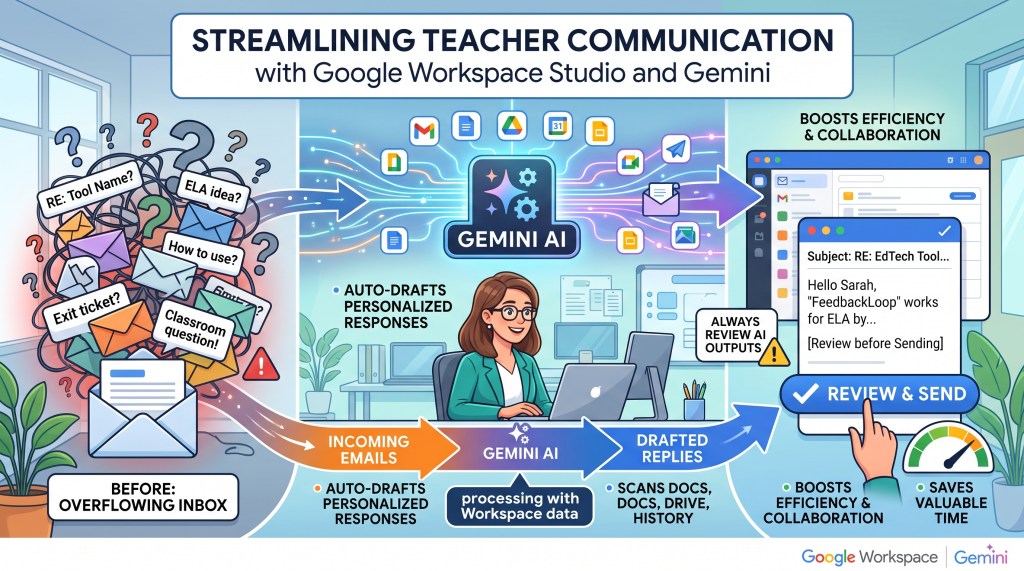
- Auto-Drafts Emails: Gemini integrates with Google Workspace to automatically draft personalized replies based on your existing files and history.
- Boosts Efficiency: Saves educators time by generating context-aware responses that just need a quick read-through.
- Requires Oversight: Users must always review and verify AI-generated drafts before hitting send.
As educators, we know how quickly our email inboxes can overflow with questions and follow-ups. Managing this deluge of messages often takes valuable time away from supporting students, coaching teachers, and planning lessons. To help streamline this process, I recently built a flow in Google Workspace Studio that uses Gemini to automatically draft replies to my incoming emails.
Within seconds of receiving a new message, this customized flow goes to work. Gemini drafts a reply based on the specific content of the email and my past communication history with the sender. It also takes into consideration other information stored across my Workspace account, scanning Docs, Slides, and Drive files that might be pertinent to the current conversation.
This setup recently proved incredibly helpful after an educational technology training session I conducted. A teacher emailed me with a question about a specific tool I had demonstrated. The tool allows students to respond to prompts and receive immediate feedback. It also provides an analysis that groups students based on their achievement levels or misunderstandings, which is perfect for guiding reteaching and determining next steps. During the training, I had mentioned how great this tool could be for quick exit tickets.
In her email, the teacher asked for the name of the platform and wanted to know how it could be applied in an English Language Arts class, since my initial demonstration had focused on a math example.
When I opened my email to read the message, I did not have to start typing from scratch. A draft was already composed and waiting for me to review. The flow, powered by Gemini, had seamlessly built the response by searching my calendar, my notes, and other relevant information in my Workspace account tied to this specific teacher.
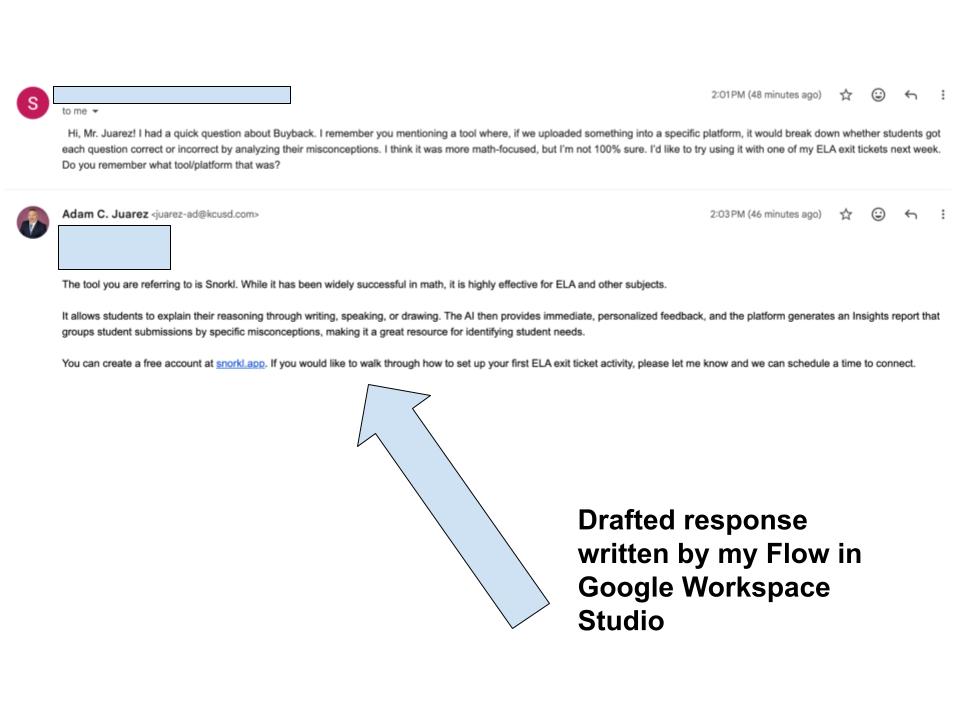
The drafted reply successfully answered the question about the name of the tool (Snorkl). It also explained how the platform could be effectively used in an English Language Arts setting (based on my notes saved in Google Drive) and highlighted how it helps analyze student misconceptions. After a brief review to ensure everything was accurate, and a few small edits, I simply clicked reply. Thanks to this quick exchange, I will be meeting with this teacher soon to follow up and collaborate further.
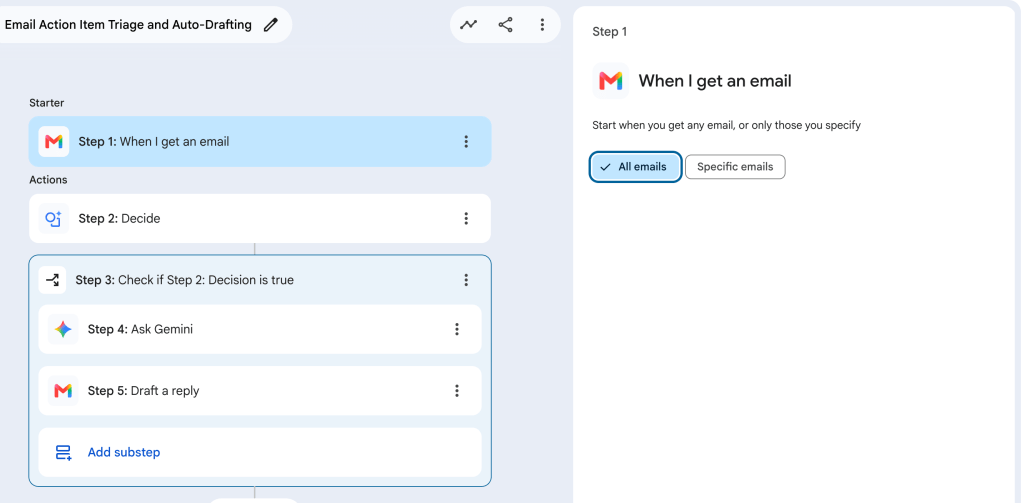
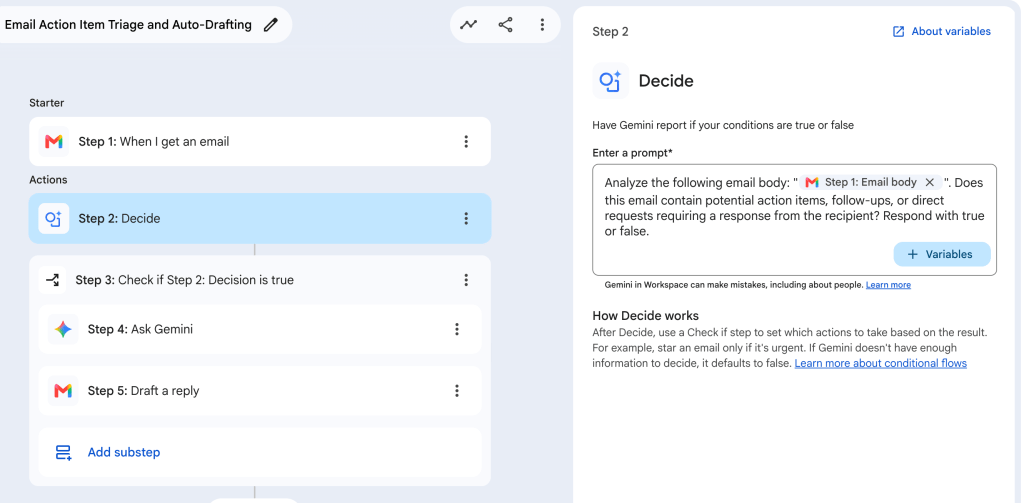
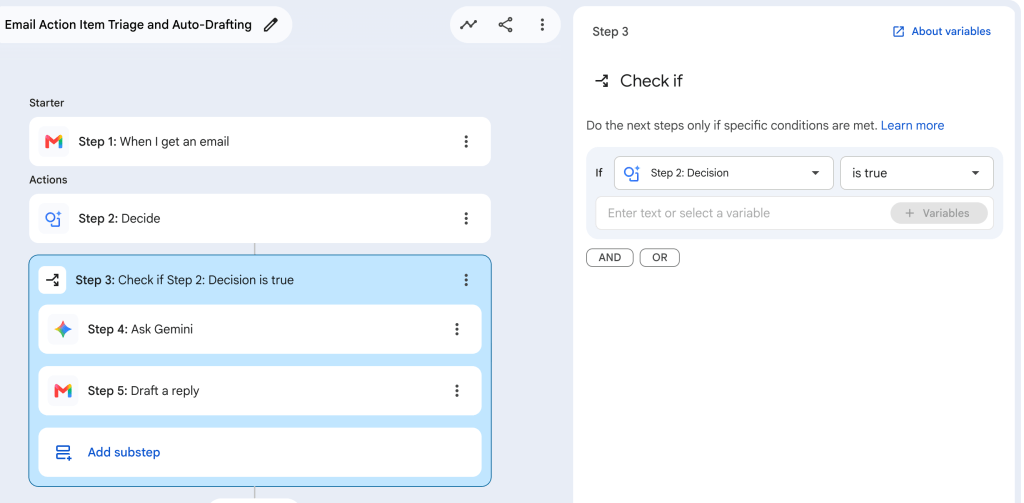
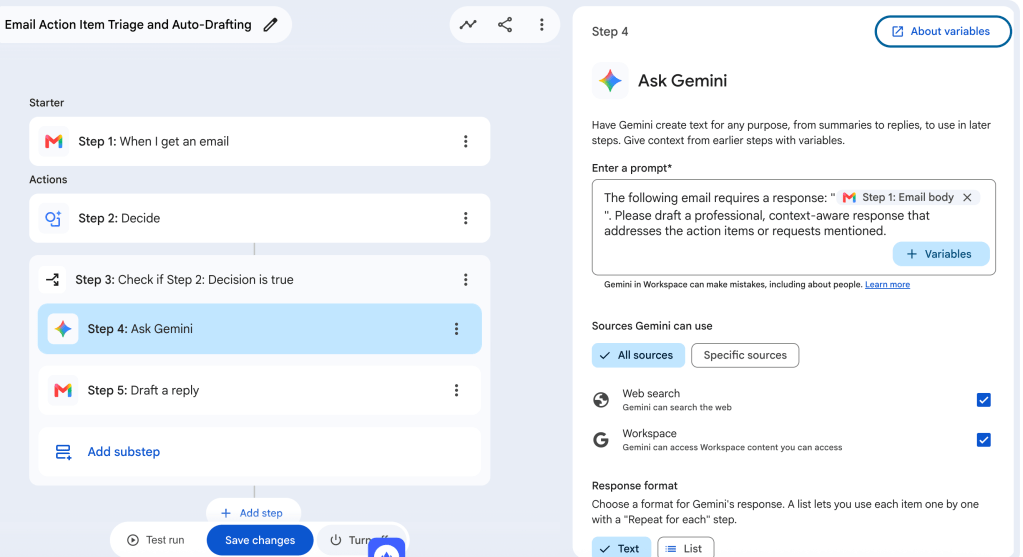
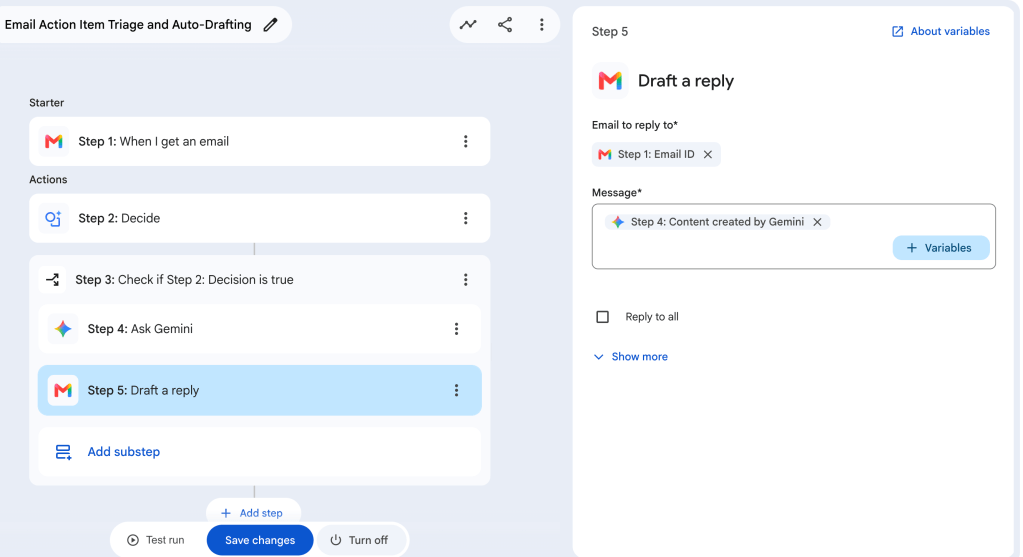
The steps for this Flow in Google Workspace Studio
If you need support responding to an overwhelming number of emails, setting up a similar flow could be a highly useful strategy for your own practice. Just remember that you are always in charge. It is essential to vet all drafted responses and carefully review any artificial intelligence generated outputs before hitting send. See the video below to learn how to get started creating Flows in Google Workspace Studio.
This blog post was drafted with the help of Google Gemini to help organize and flesh out my thoughts and ideas regarding how to set up a Flow in Google Workspace Studio. I also used NotebookLM to generate a brief audio overview, perfect for those who want to listen and learn on the go.
If you enjoy this blog, you’ll love our new book, History Matters in an AI Era. Available now on Amazon, this book shares practical, research-based strategies for integrating technology into history lessons. You’ll learn how to use technology to increase student engagement and curiosity. Click here to get your copy today.

Leave a comment