
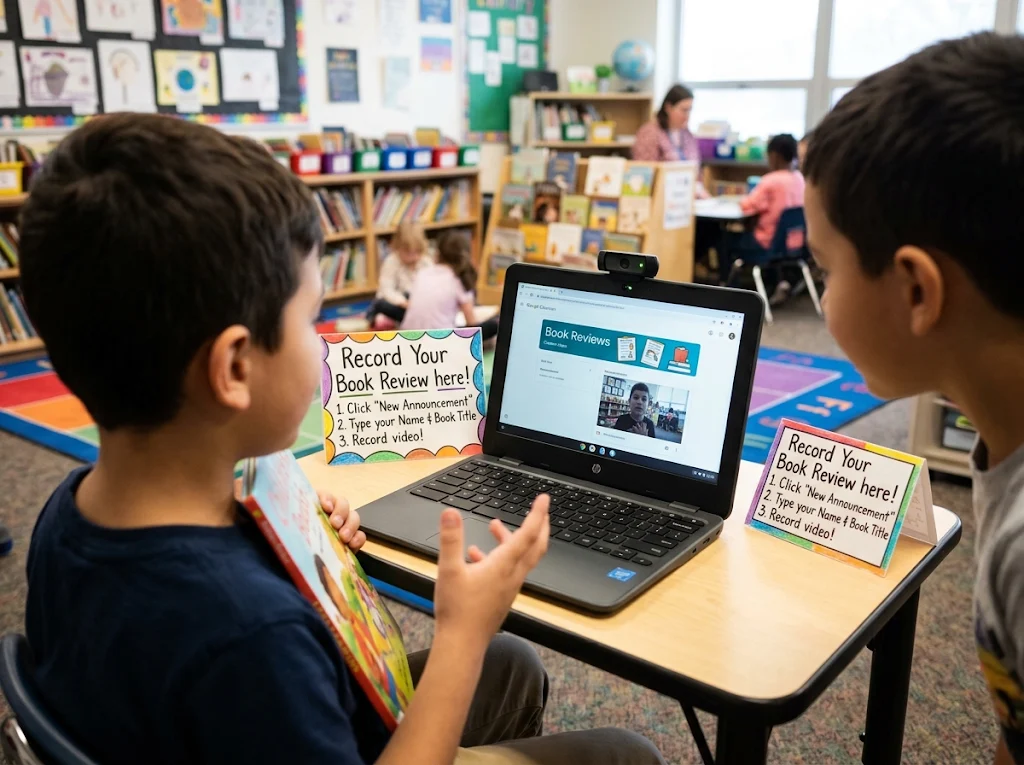
- Set up the class: Create a Google Classroom with one generic student account and a 1600×400 Google Drawings banner showing where to click.
- Record at a station: Keep 1–2 Chromebooks logged into that account so students can post a 30-second video review using New Announcement.
- Share the reviews: Save the videos to Google Drive and feature them on a library website or link them to QR codes for other readers.
Whether you are a school librarian or a teacher managing a classroom library, knowing what students think about the books they read is invaluable. Collecting those thoughts, however, can be tricky. Handwritten slips quickly turn into a management headache, and paid platforms that let students log in and upload reviews often do not fit tight school budgets. Fortunately, you can build a simple, free video book review station using a tool you likely already have: Google Classroom.
Start by creating a brand new class dedicated solely to book reviews. To make the workflow smooth for students, reach out to your IT department to request a generic classroom or library student account that you can manage yourself. Once the account is ready, add it as the lone student in your book review class.
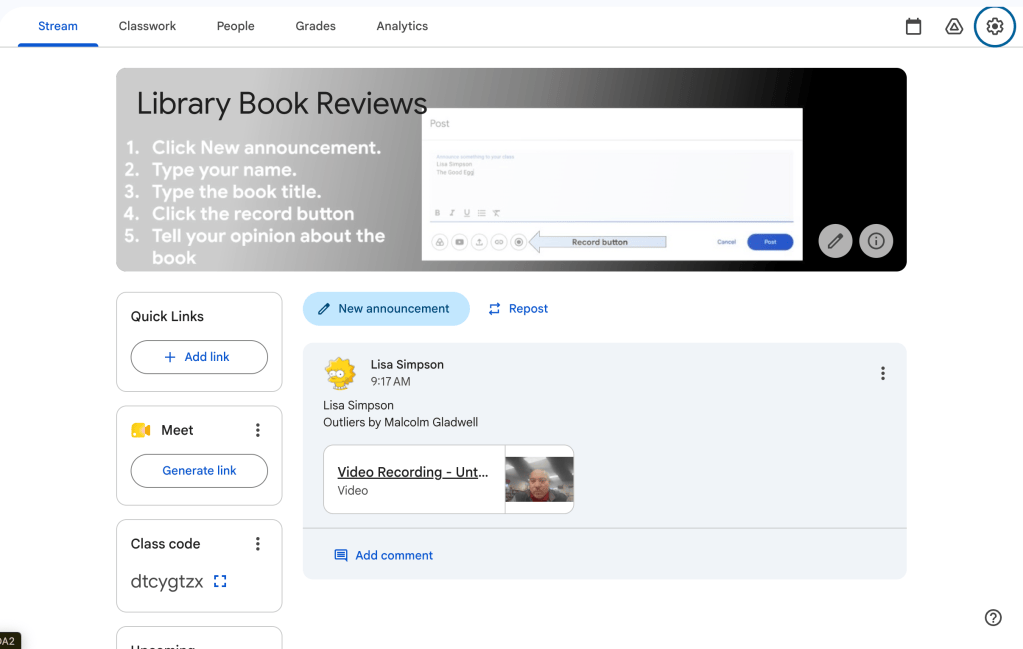
Next, set students up for independent success by customizing the class banner. Using Google Drawings, create a banner sized at 1600×400 pixels. Include clear, simple instructions right on the image along with a screenshot showing students exactly where to click. That visual guide takes the guesswork out of the process and lets students complete their reviews without needing constant support.
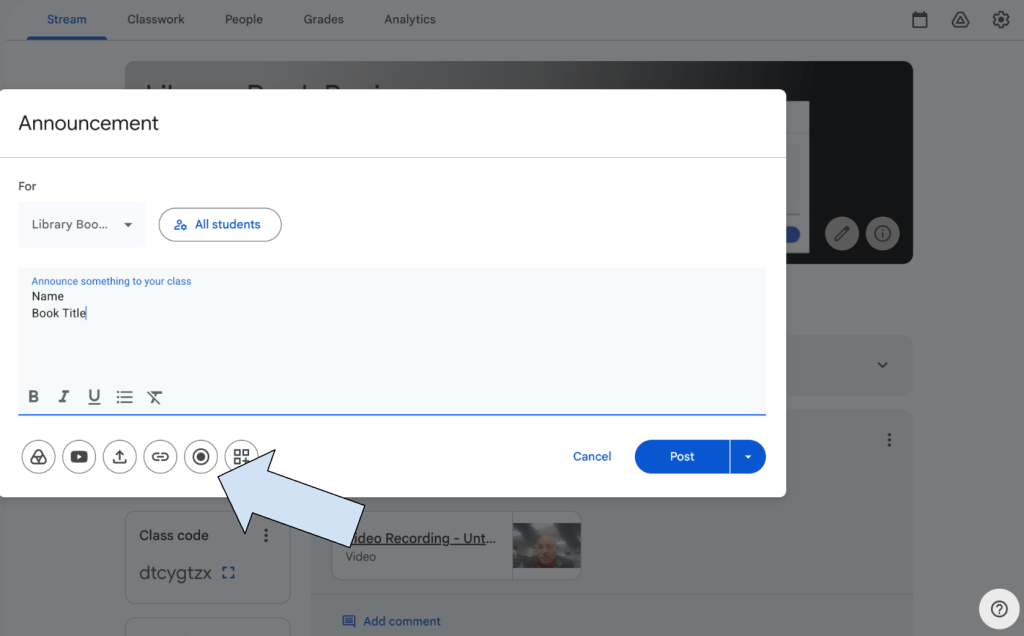
To launch the station, set up one or two Chromebooks in your classroom or library and keep them logged into the generic student account. When a student finishes a book, they simply walk over, click New Announcement, and type their name and the book title. Then they click the record button, choose the video option, and share a book review that is roughly 30 seconds long.
Once submitted, every video review is accessible inside your Google Classroom and can be easily saved and stored in Google Drive. From there, the possibilities are endless. You can curate student videos on a library website or link them to QR codes so other students can watch recommendations before choosing their next read. With a little bit of setup, you can give every reader a voice without stretching your budget.
This blog post was drafted with the help of Google Gemini to help organize and flesh out my thoughts and ideas regarding how to set up Google Classroom as a book review station. I also used Gemini Notebook to generate a brief audio overview, perfect for those who want to listen and learn on the go.
If you enjoy this blog, you’ll love our new book, History Matters in an AI Era. Available now on Amazon, this book shares practical, research-based strategies for integrating technology into history lessons. You’ll learn how to use technology to increase student engagement and curiosity. Click here to get your copy today.

Leave a Reply