
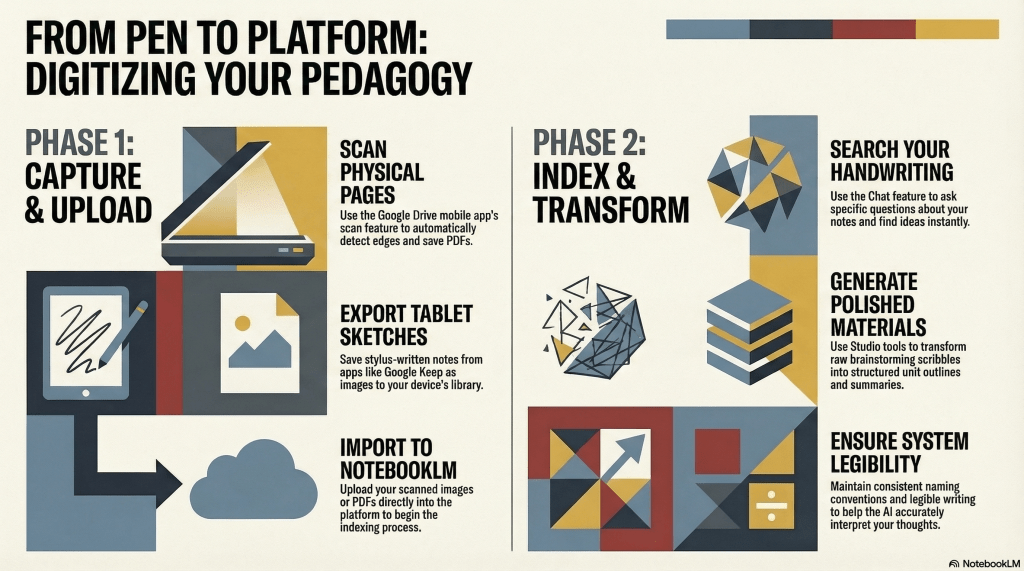
- Digital Integration: NotebookLM transforms handwritten or stylus-based notes into searchable digital assets through simple photos, scans, or screenshots.
- Effortless Organization: Tools like the Google Drive scan feature and Google Keep drawings make it easy to upload and categorize physical planning sessions.
- Actionable Insights: Once digitized, educators can use the Chat and Studio features to quickly summarize notes and generate new teaching materials.
Many educators still find that the physical act of writing is the most effective way to process new ideas or plan lessons. However, the struggle usually begins after the ink dries. Managing a stack of physical notebooks or trying to locate a specific thought from a meeting months ago can be a significant hurdle. If you prefer the tactile feel of a pen but feel overwhelmed by the lack of organization, NotebookLM offers a bridge between your handwritten world and digital efficiency.
The transition from paper to a searchable digital database is simpler than it might seem. The primary requirement is capturing a clear image or scan of your writing. For those using traditional pen and pencil, your smartphone is your best tool. Taking a well-lit photo of each page works perfectly. Alternatively, you can use a dedicated scanner to export multiple pages into a single PDF or image file stored on your device or in the cloud.
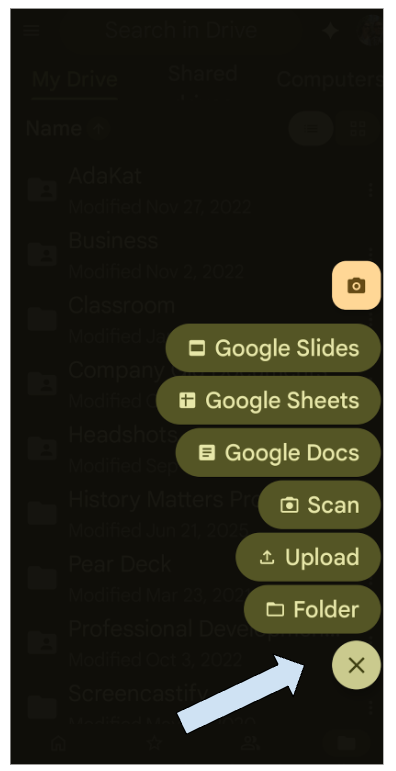
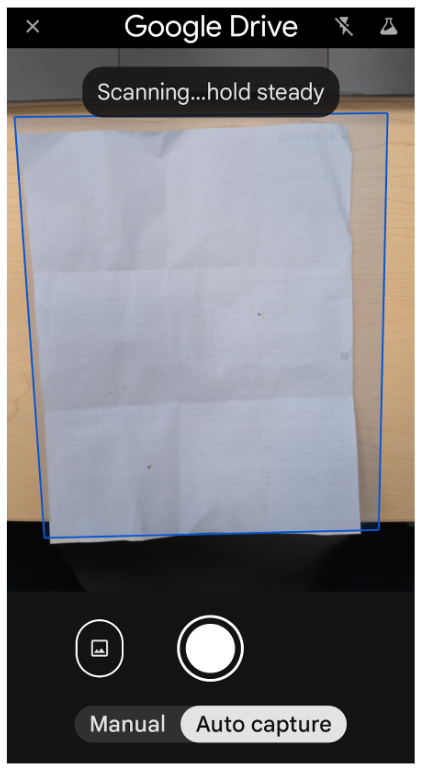
If you are a Google Drive user, the mobile app includes a built-in scan feature that is particularly helpful for this workflow. It automatically detects the edges of your paper and saves the document directly to your Drive, keeping your digital workspace tidy from the start.
For teachers who have already moved to tablets but still use a stylus for that handwritten feel, the process is even faster. You can take screenshots of your notes and upload them directly. A specific method that works well is using Google Keep drawing notes. This tool provides a background that simulates ruled notebook paper, making the writing experience feel familiar. Once a page is finished, it can be exported to your image library and uploaded into NotebookLM.
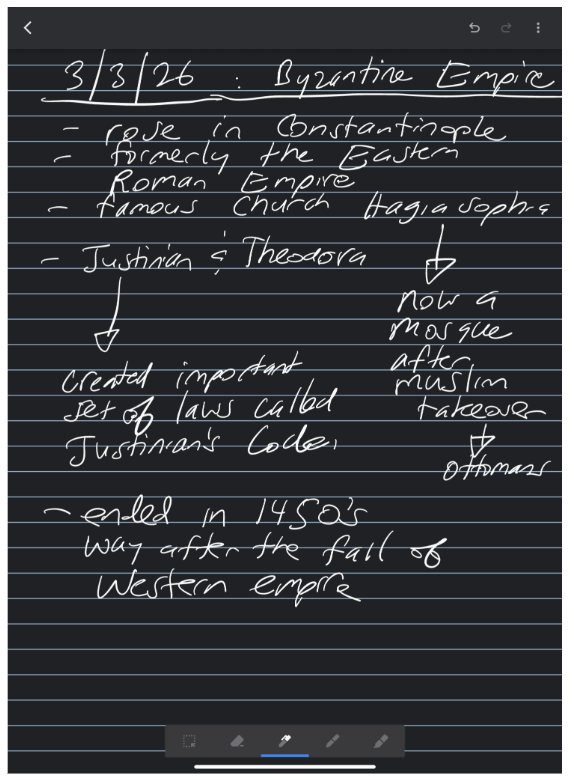
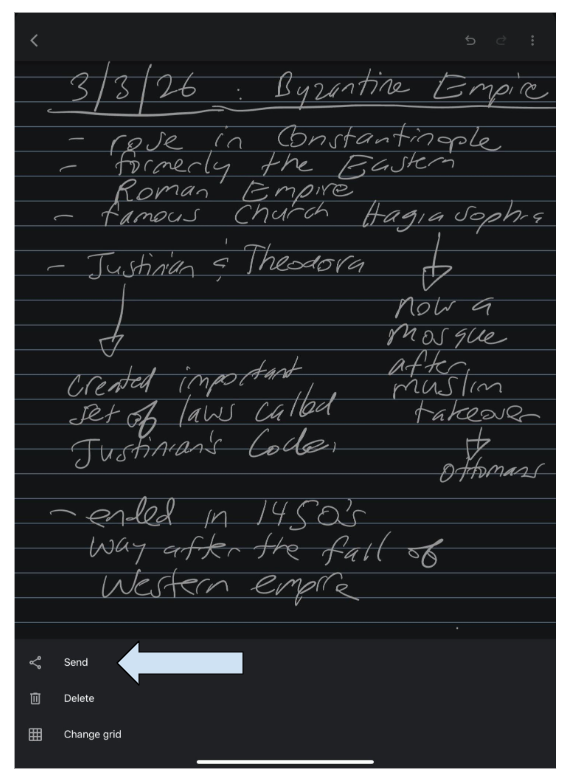
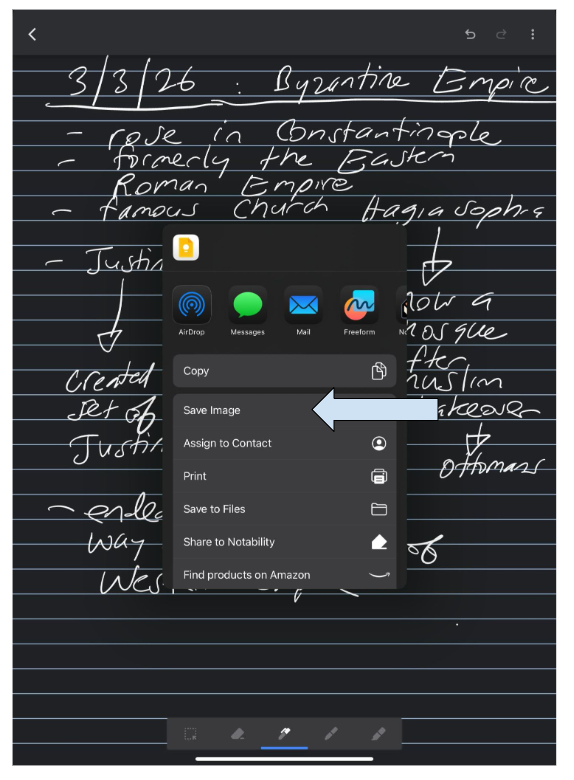
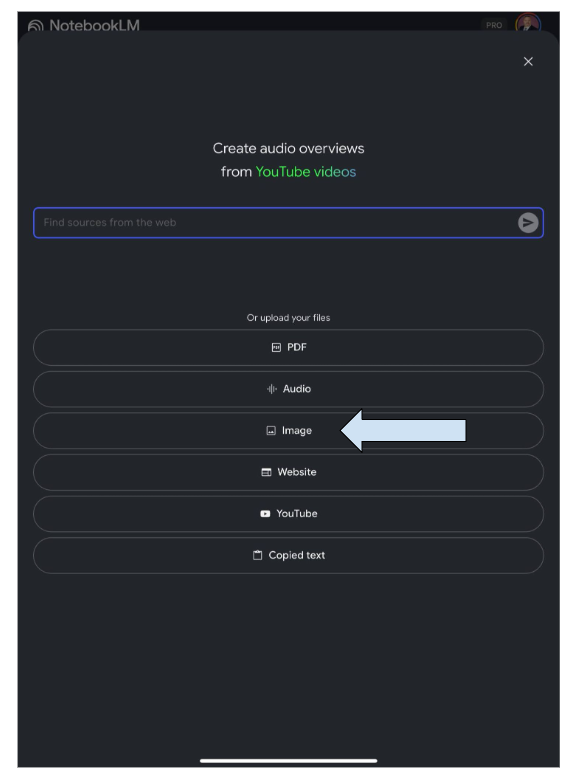
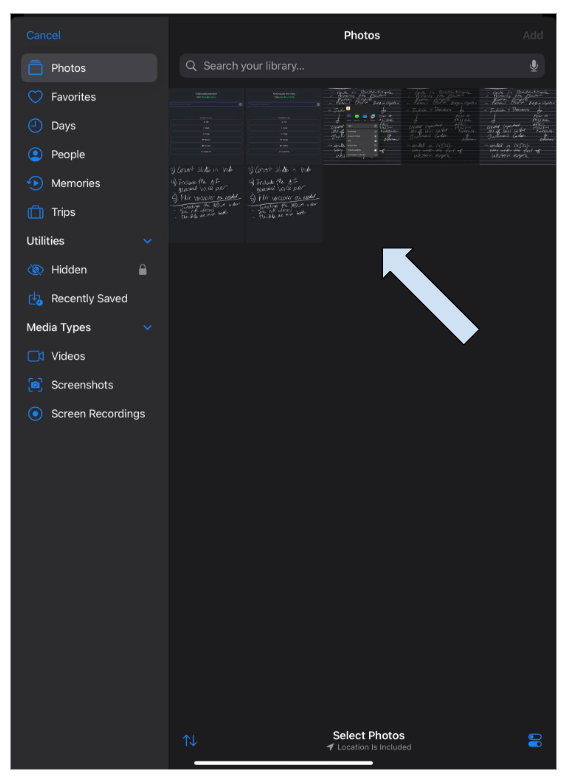
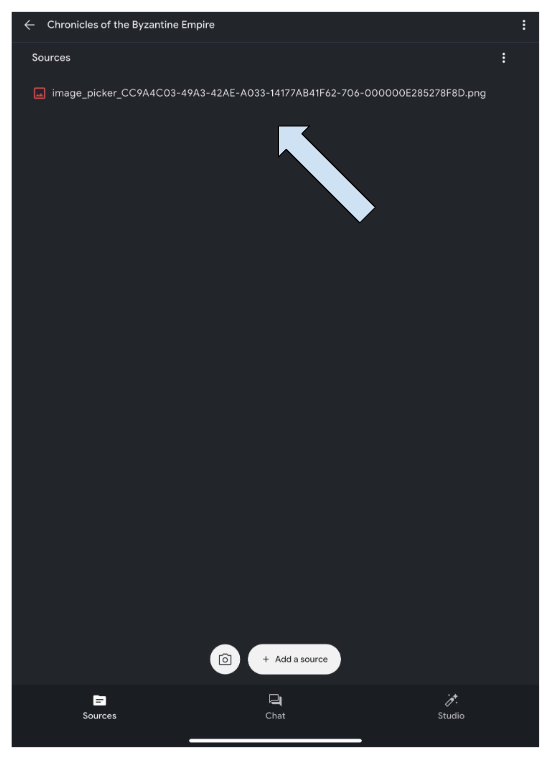
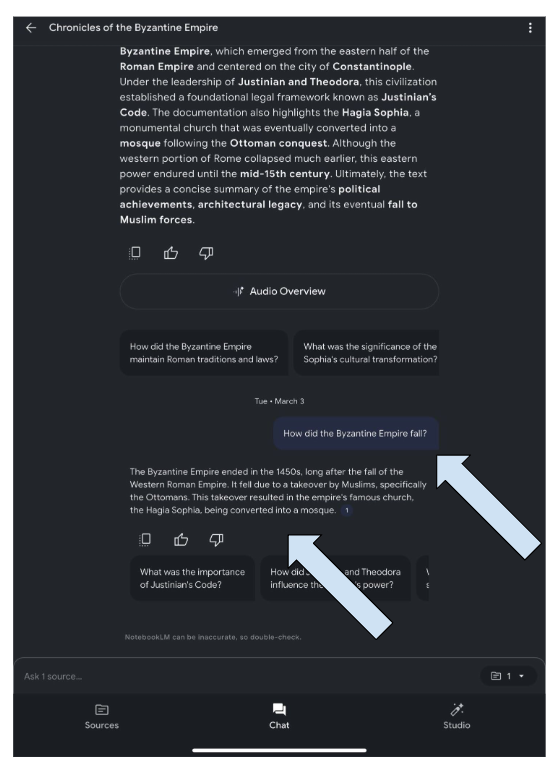
Once your handwritten notes are uploaded, the true potential of this technology is unlocked. NotebookLM can read and index legible handwriting, allowing you to use the Chat feature to ask specific questions about your own thoughts. Instead of flipping through hundreds of pages to find a specific curriculum idea, you can simply ask the assistant to find it for any notes you have uploaded.
Beyond just searching, you can use the various Studio tools within the platform to transform those raw notes into polished materials. You can ask the tool to summarize your brainstorming sessions or help you create engaging outlines for your next unit based on the scribbles from your planning period.
To get the most out of this system, consistency is key. Developing a clear naming convention for your uploaded images or scans will make a world of difference as your library grows. Additionally, while the technology is impressive, maintaining legible handwriting and using clear labels within your notes will ensure the software accurately interprets your ideas. By following these steps, you can keep the handwritten practice you love while gaining the organizational power of a digital assistant.
This blog post was drafted with the help of Google Gemini to help organize and flesh out my thoughts and ideas regarding how take use tools such as Gemini or NotebookLM to analyze and organize handwritten notes. I also used NotebookLM to generate a brief audio overview, perfect for those who want to listen and learn on the go.
If you enjoy this blog, you’ll love our new book, History Matters in an AI Era. Available now on Amazon, this book shares practical, research-based strategies for integrating technology into history lessons. You’ll learn how to use technology to increase student engagement and curiosity. Click here to get your copy today.

Leave a comment