
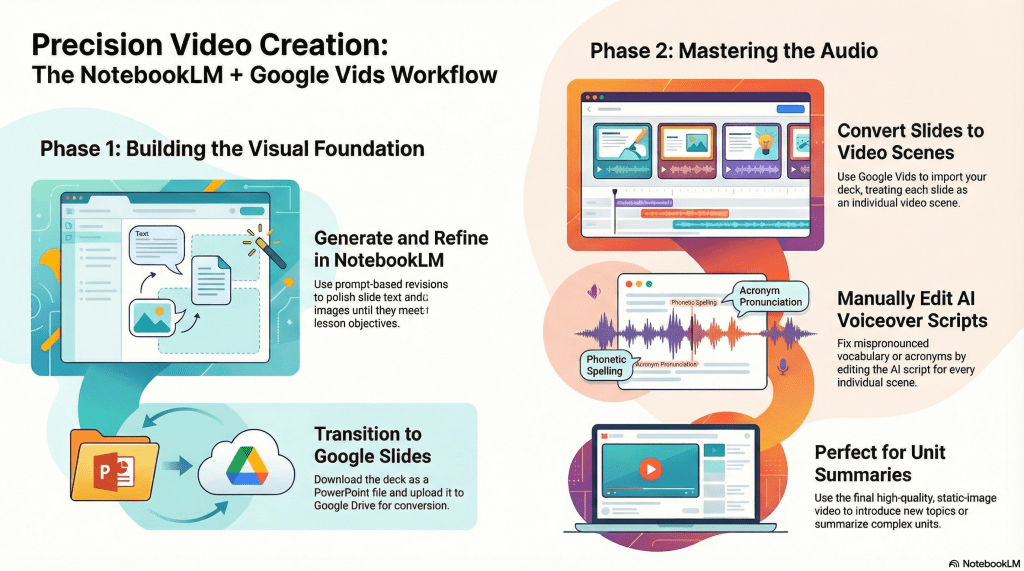
- Identify the Gap: NotebookLM video overviews are great but currently lack the editing tools needed to fix audio errors like mispronounced words.
- The Slides Solution: Use the NotebookLM slide generator instead, as it allows for prompt-based text edits and easy export to PowerPoint or Google Slides.
- Precision with Google Vids: Convert those slides into a video within Google Vids to manually customize the AI voiceover script for every single scene.
Google NotebookLM has quickly become a favorite tool for educators looking to streamline content creation. While its ability to generate quick video overviews is impressive, many teachers have noted a common frustration: a lack of creative control. It is difficult to watch a generated video that mispronounces a key vocabulary term or fumbles a specific acronym, especially when there are currently no built-in editing features to fix those audio slips.
Fortunately, there is a practical workaround that gives you more authority over the final product. By shifting your focus from the video generator to the slide deck generator, you can leverage the best of NotebookLM while maintaining your professional standards for accuracy.
The Power of Precision in Slides
NotebookLM excels at creating organized, visually appealing slide presentations. Unlike the video tool, the slide generator recently added a prompt-based revision feature. This allows you to refine the text and images until they perfectly match your lesson objectives. Once the deck is polished, you can download it as a PowerPoint file.
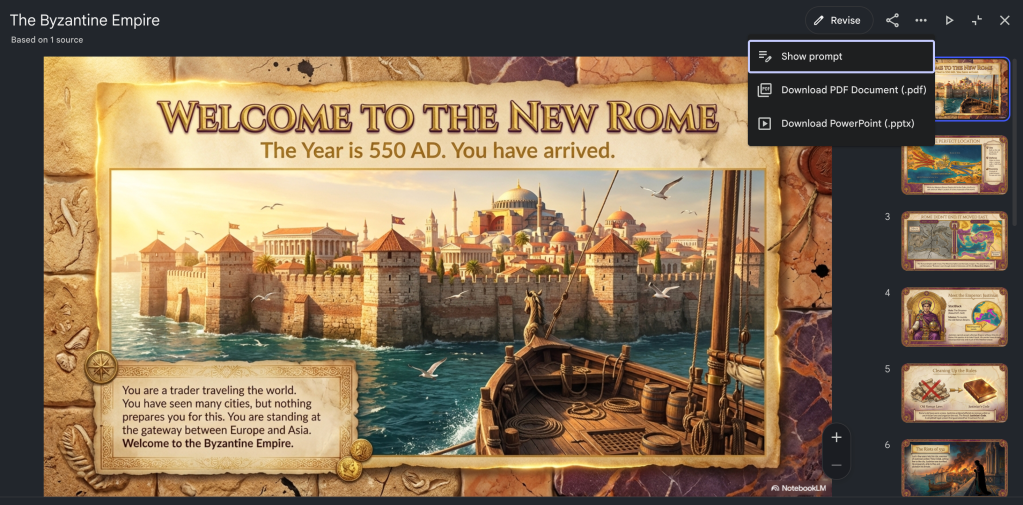
To bring this into the Google ecosystem, simply upload that file to your Google Drive. If your settings are set to automatically convert uploads, it will become a Google Slides file instantly. This file serves as the sturdy foundation for a much more flexible video project.
Converting Slides with Google Vids
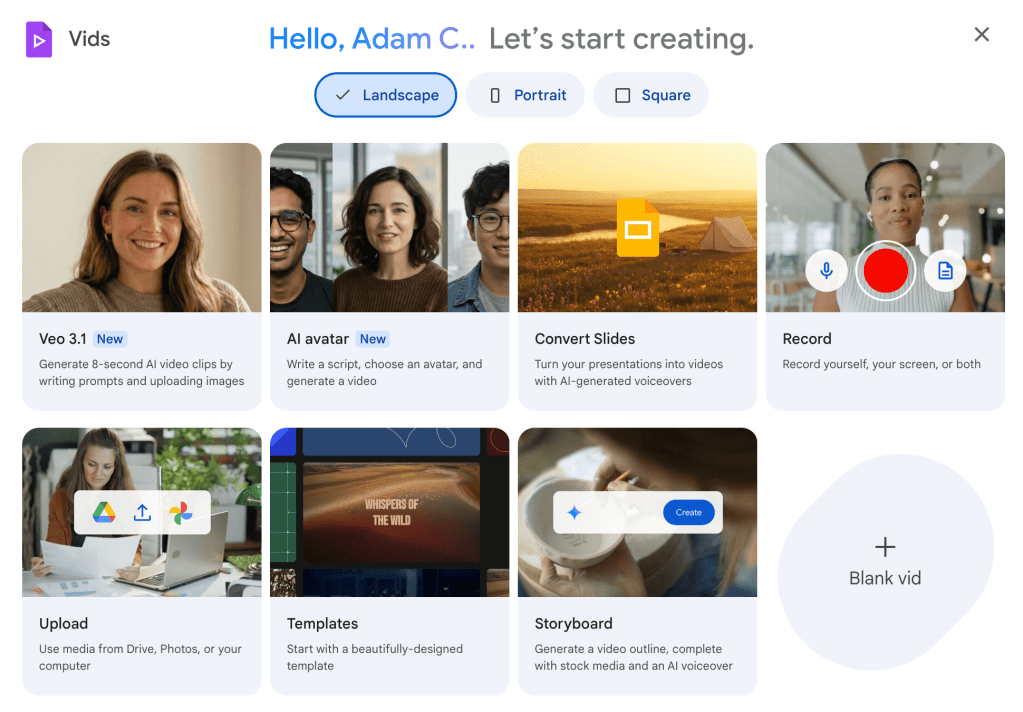
The real magic happens when you open Google Vids and select the option to convert slides. This tool treats each of your slides as an individual scene in a video timeline. The most valuable part of this process is the voiceover step. When prompted, choose to have the AI generate a voiceover for each slide.
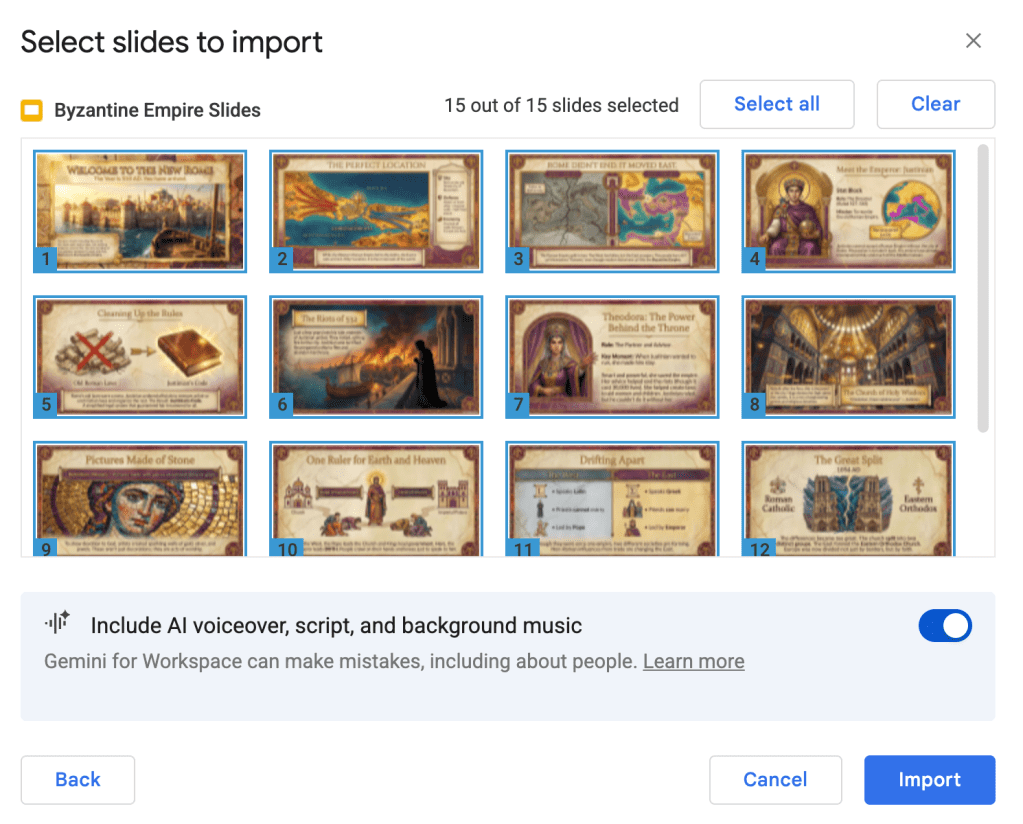
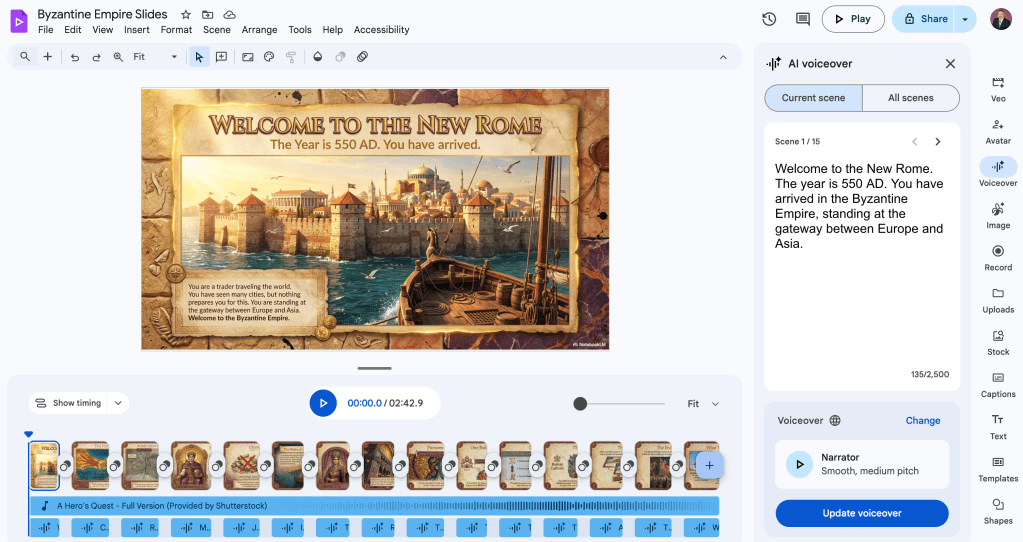
Because you are working scene by scene, you can manually edit the script for the AI voice. This is where you can add essential content and fix any mispronunciations or clarify complex acronyms. You are no longer at the mercy of a one-take generator. You are the director ensuring the instructional content and audio is exactly right for your students.
Engaging Results for the Classroom
While the resulting videos are a series of static images rather than high-motion animation, the quality remains high. These videos are excellent for introducing new topics or providing a detailed summary of a unit. They combine the aesthetically appealing visual design of NotebookLM with your specific subject matter expertise.
By using this workflow, you can bridge the gap between automated convenience and instructional integrity. You provide your students with a professional, engaging resource that sounds exactly the way it should, ensuring that the focus stays on learning rather than on technical errors.
This blog post was drafted with the help of Google Gemini to help organize and flesh out my thoughts and ideas regarding how to generate videos with Vids based on slides created in NotebookLM. I also used NotebookLM to generate a brief audio overview, perfect for those who want to listen and learn on the go.
If you enjoy this blog, you’ll love our new book, History Matters in an AI Era. Available now on Amazon, this book shares practical, research-based strategies for integrating technology into history lessons. You’ll learn how to use technology to increase student engagement and curiosity. Click here to get your copy today.

Leave a comment