
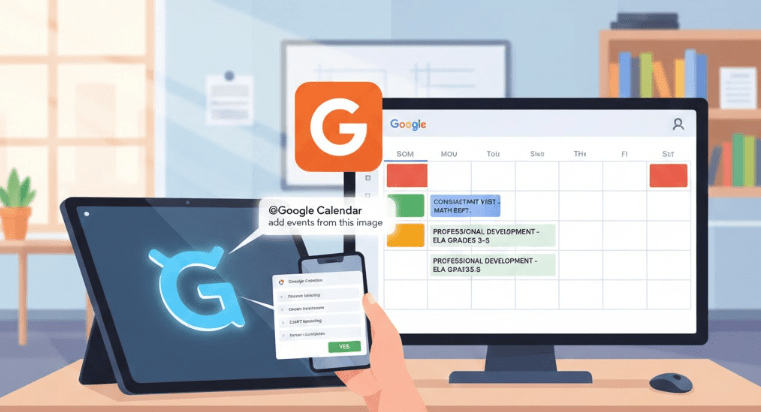
- Enable Integration: Connect Gemini to Google Calendar via settings.
- Upload and Prompt: Upload a schedule image (screenshot or photo) and prompt Gemini to create the events.
- Instant Events: Review the preview and confirm to instantly populate your calendar, saving time.
Administrators, support staff, and instructional coaches often juggle many different schedules and calendars. The process of manually transferring dates and events from a document or handwritten note into a digital or shared school calendar can be tedious and time-consuming. Fortunately, technology offers a simple and fast solution to this common bottleneck.
You can leverage Gemini’s connection with Google Calendar to quickly generate multiple calendar events at once, dramatically reducing the time you spend on data entry. This is especially helpful when dealing with complex, multi-day schedules.
Imagine an administrator sets up a multi-day visit for a consultant or coach to provide support across various departments or grade levels at a school site. The support staff or coach receives this schedule either as a physical paper document or a digital file. Instead of typing in each meeting individually, they can use Gemini to instantly populate their Google Calendar with an image or screenshot of the schedule.

Here is the straightforward process: First, go to the settings in the bottom left corner of Gemini to enable the connection with your Google Workspace apps. This simple step unlocks powerful integration capabilities.
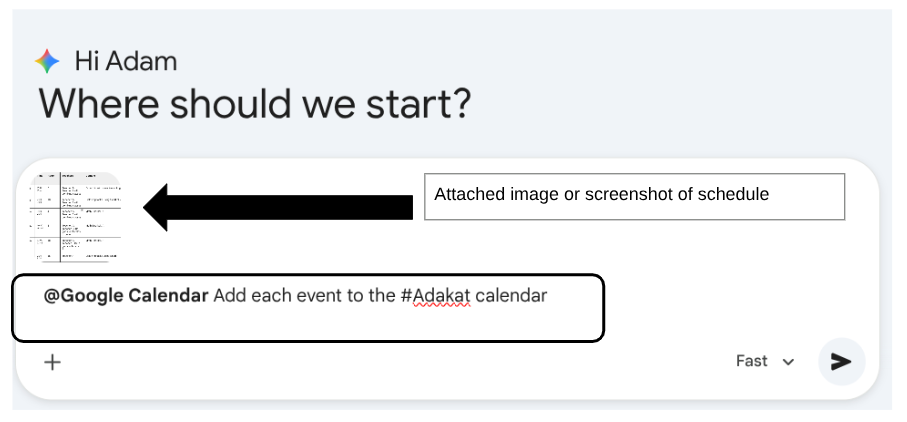
Once the connection is enabled, start your prompt by typing the “@” symbol and then typing Google Calendar. Next, instruct Gemini to add the events by attaching an image or screenshot of the schedule you want to use. You can specify which of your Google Calendars you prefer the events to be added to.
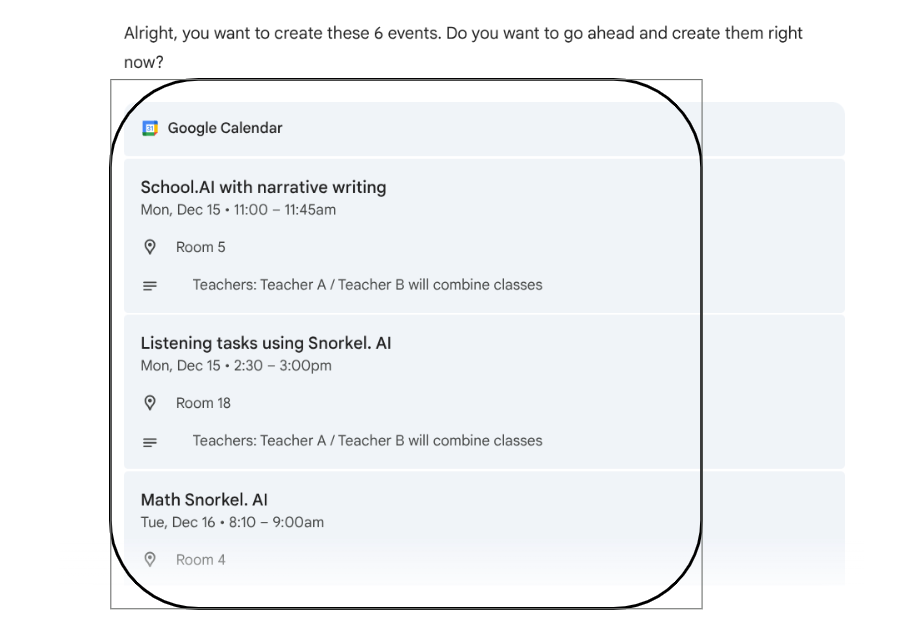
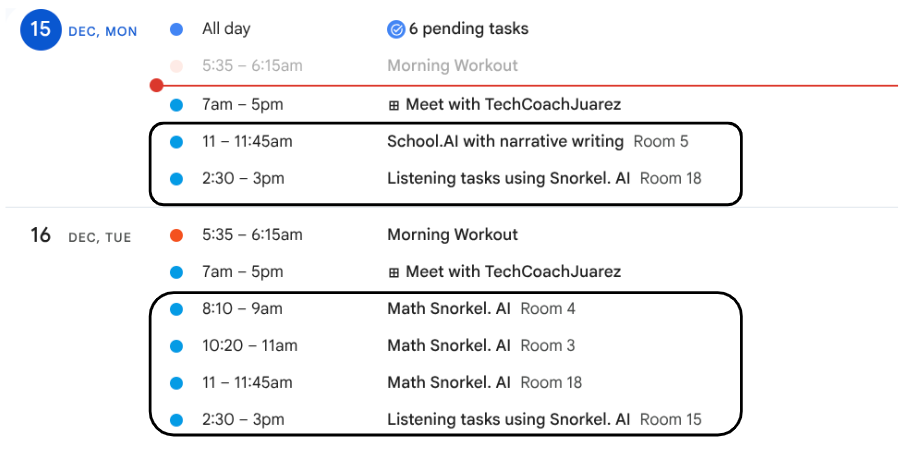
Gemini will then provide a clear preview of the events it has identified and extracted from the image. It will ask for confirmation before proceeding. Once you type Yes, those events will appear on your chosen calendar in a matter of seconds. Every new calendar entry is fully editable, allowing you to easily adjust details, add attachments, or invite other participants as needed. This simple strategy transforms a cumbersome administrative task into a quick, efficient process, giving you more time to focus on supporting teaching and learning.
This blog post was drafted with the help of Google Gemini to help organize and flesh out my thoughts and ideas regarding how to use Gemini to quickly and conveniently help create multiple events on Google Calendar. I also used NotebookLM to generate a brief audio overview, perfect for those who want to listen and learn on the go.
If you enjoy this blog, you’ll love our new book, History Matters in an AI Era. Available now on Amazon, this book shares practical, research-based strategies for integrating technology into history lessons. You’ll learn how to use technology to increase student engagement and curiosity. Click here to get your copy today.

Leave a comment