
- Infographic Creation: Both NotebookLM and Gemini allow for quick infographic generation with customization options (detail, style, color, focus) using simple prompts.
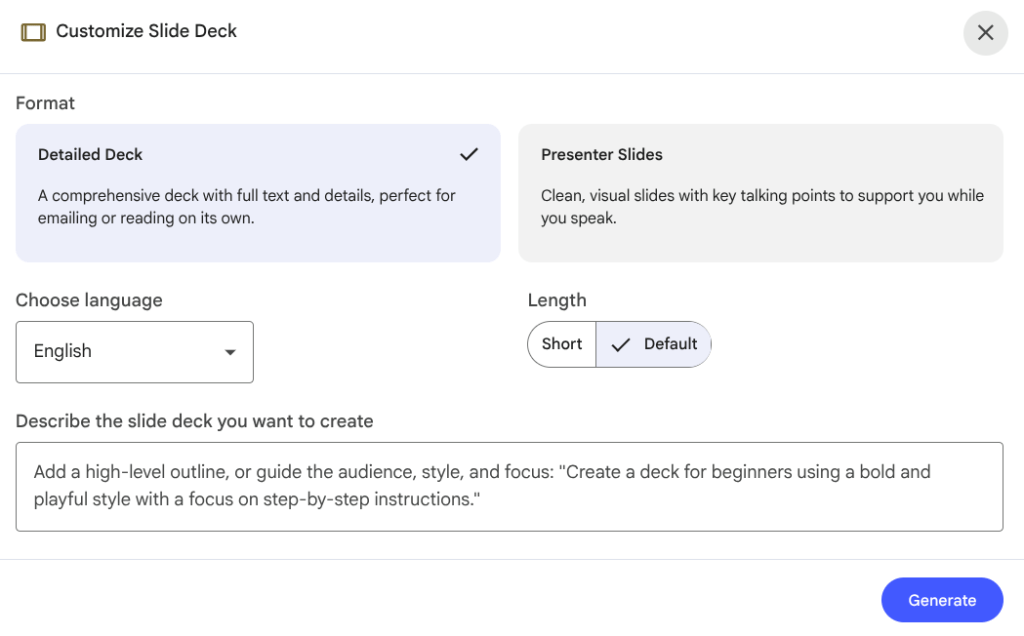
- NotebookLM Slide Decks: Offers fast slide generation with choices for detail (simple vs. detailed slides) and audience focus.
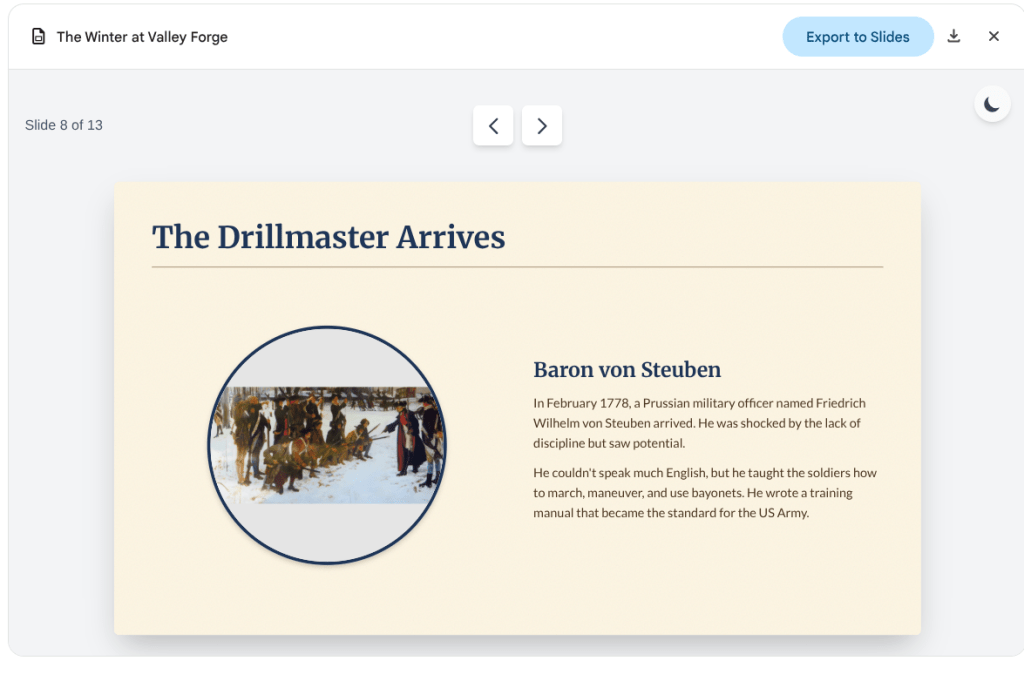
- Gemini Slide Decks: Uses the ‘Canvas’ tool to quickly create slide decks from a detailed prompt, and uniquely offers an ‘Export to Slides’ feature to save and edit the presentation directly in Google Slides.
In the demanding world of education, time is a precious commodity. Creating engaging visual aids, like infographics and slide decks, often eats up valuable planning time. Fortunately, tools like Gemini and NotebookLM now offer fast, practical solutions to help you generate these materials quickly, giving you a strong foundation to build upon.
Infographics in a Flash
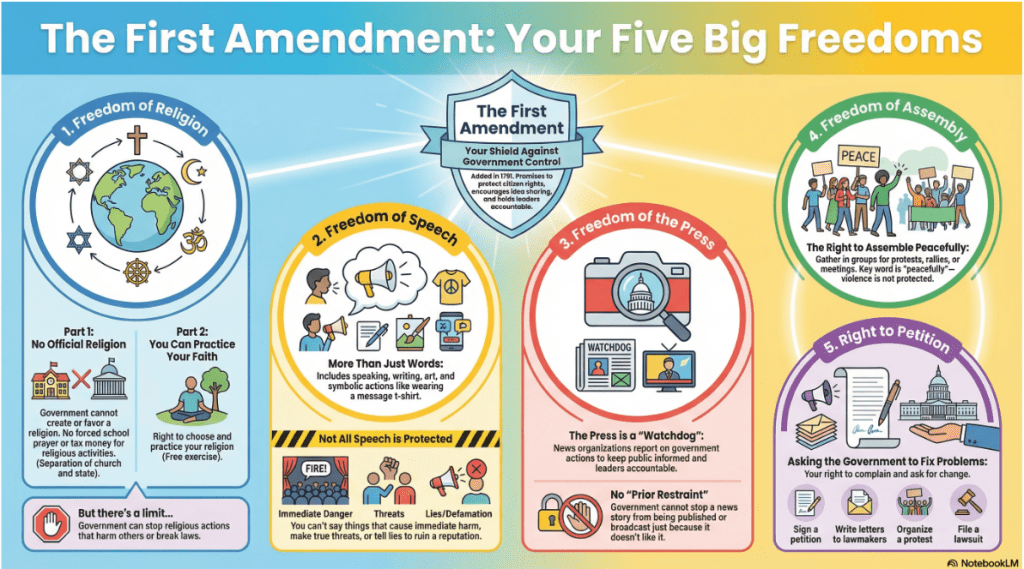
Infographics are powerful tools for summarizing complex information for students or for use in professional development. Both Gemini and NotebookLM have simplified the creation process.
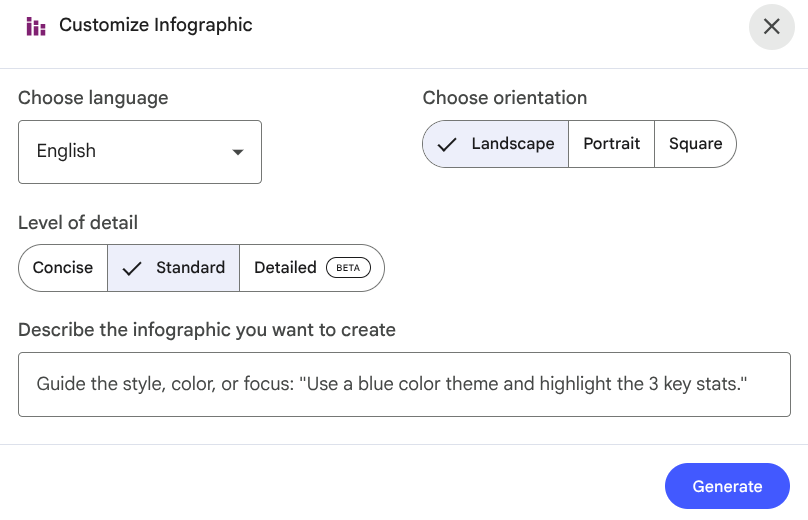
In NotebookLM, look for the new features in the Studio column on the right. You will find customization options that let you choose the level of detail, orientation, and language of your infographic. A prompt box allows you to describe the style, color, and focus to ensure the final product meets your needs. These can be exported as convenient PNG files.
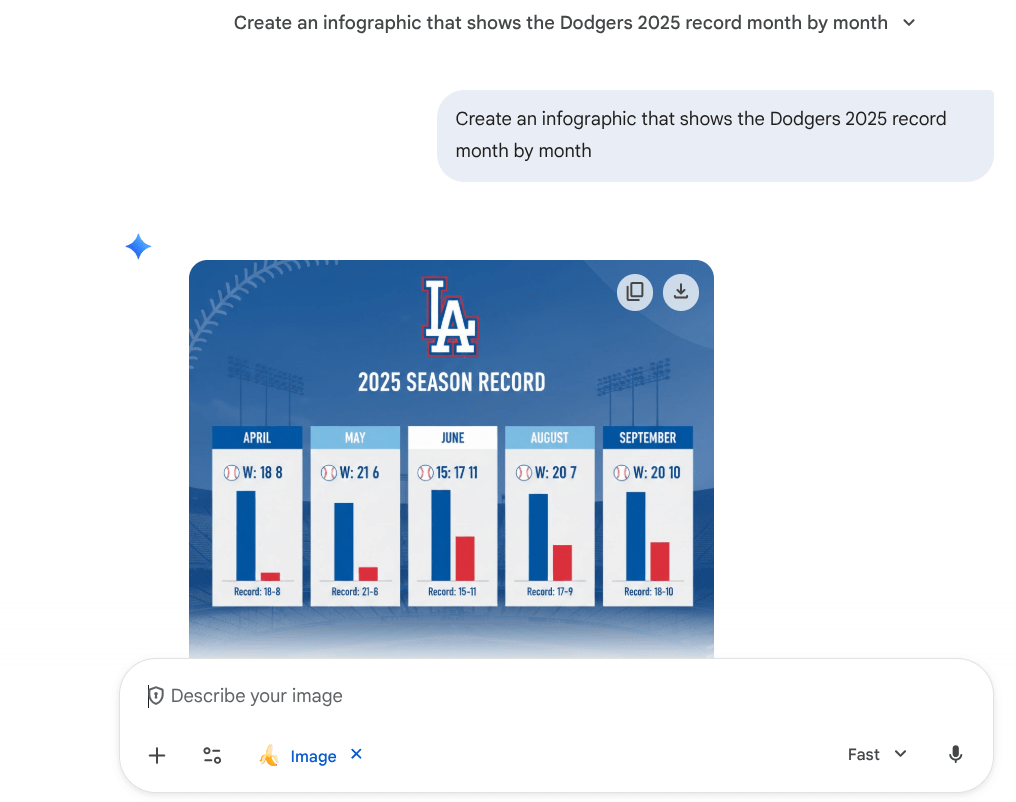
For Gemini, the process is straightforward. Access the tools menu, select ‘Create Image,’ and simply describe the infographic you want. You can even attach reference documents to guide the creation. Once ready, the infographic can be downloaded as a PNG file.
Effortless Slide Deck Generation
Preparing a presentation for a lesson or a meeting can also be a significant time commitment. These tools offer a fantastic jumping-off point.
Within NotebookLM, you can choose between detailed slides or simple presenter slides that feature basic talking points. Customization includes selecting the language and length of the presentation. A prompt box is available for describing your target audience, desired style, and overall focus. Currently, these decks can only be exported as a PDF file, meaning they cannot be opened or downloaded directly as Google Slides.

The process in Gemini integrates seamlessly with your existing workflow. Click ‘Tools’ and select ‘Canvas.’ Start describing your desired slide deck, providing as much detail as you can. Within minutes, your presentation will appear for you to preview. The best part is the ‘Export to Slides’ button, which allows you to save the deck as a Google Slides file in your Drive, ready for further editing and personalization.
Integrating these capabilities into your teacher toolkit will save you time and allow you to focus more on tailoring the content to your students’ unique needs.
This blog post was drafted with the help of Google Gemini to help organize and flesh out my thoughts and ideas regarding how to use NotebookLM and Gemini to create slide decks and infographics. I also used NotebookLM to generate a brief audio overview, perfect for those who want to listen and learn on the go.
If you enjoy this blog, you’ll love our new book, History Matters in an AI Era. Available now on Amazon, this book shares practical, research-based strategies for integrating technology into history lessons. You’ll learn how to use technology to increase student engagement and curiosity. Click here to get your copy today.

Leave a comment