
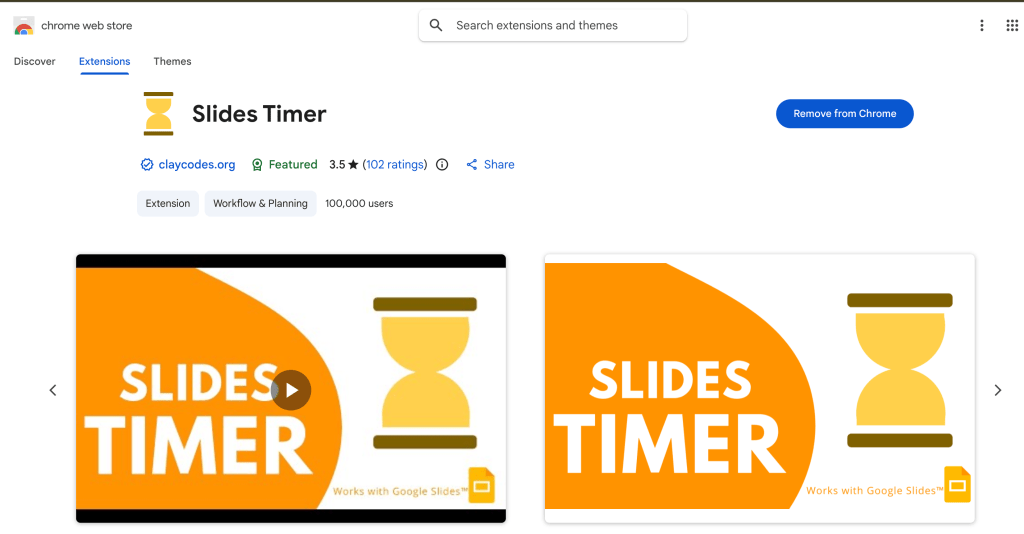
- Pacing Issues: Helps educators stay on track during lesson or presentations.
- Easy Setup: Uses simple text commands to embed timers directly onto slides.
- Visual Management: Provides clear countdowns or clocks for both teachers and students.
Pacing is one of the most challenging aspects of teaching. Whether you are leading a classroom of students or facilitating professional learning for your peers, it is incredibly easy to lose track of time. We often find ourselves deeply immersed in a compelling story, navigating a complex student question, or managing the unexpected distractions that are simply part of a school day. While these moments are valuable, they can leave you rushing through your final slides or missing key learning objectives.
The Slides Timer Chrome extension offers a practical and free solution (there is also a paid version) to help you maintain your cadence. This tool allows you to embed functional timers directly into your Google Slides presentations, ensuring that your pacing remains visible to both you and your audience without the need to toggle between different browser tabs or physical stopwatches.
How it Works
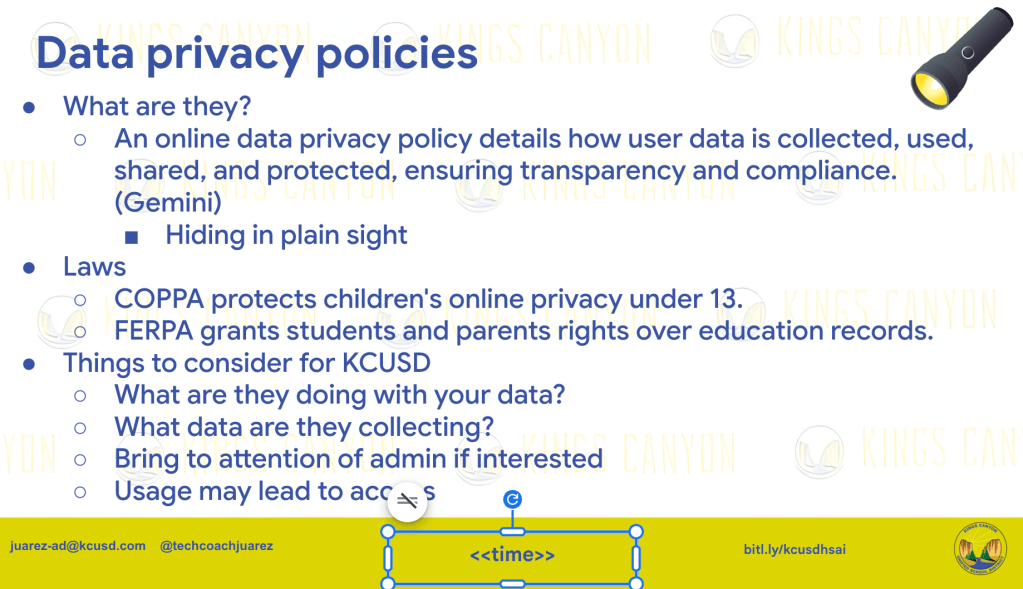
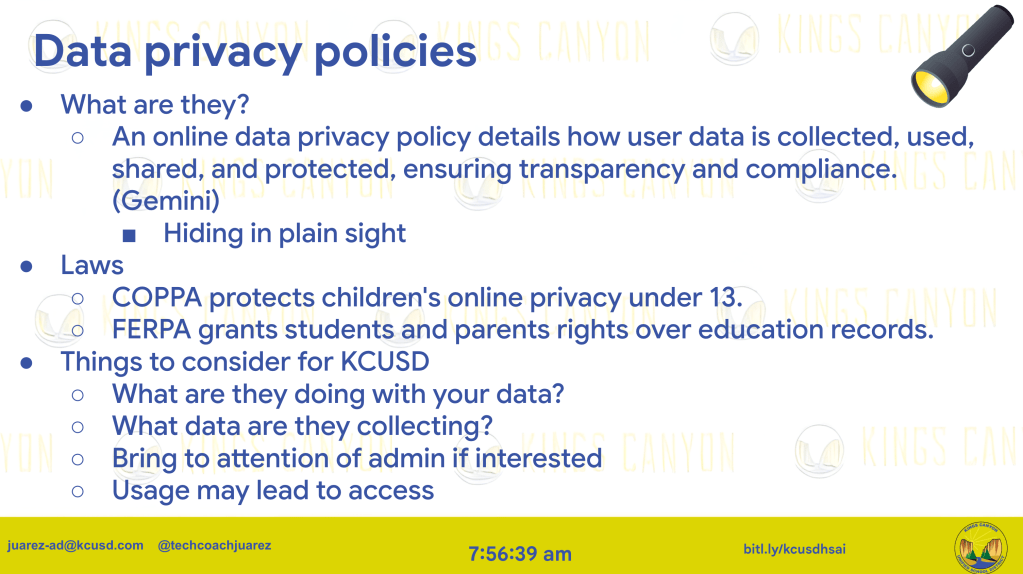
Once you have installed the extension from the Chrome Web Store, it operates through simple text commands. You do not need to navigate complex menus or embed external code. Instead, you simply create a text box on any slide where you want a timer to appear. By typing specific symbols and numbers into that text box, the extension transforms your text into a live, functioning timer once you enter present mode.
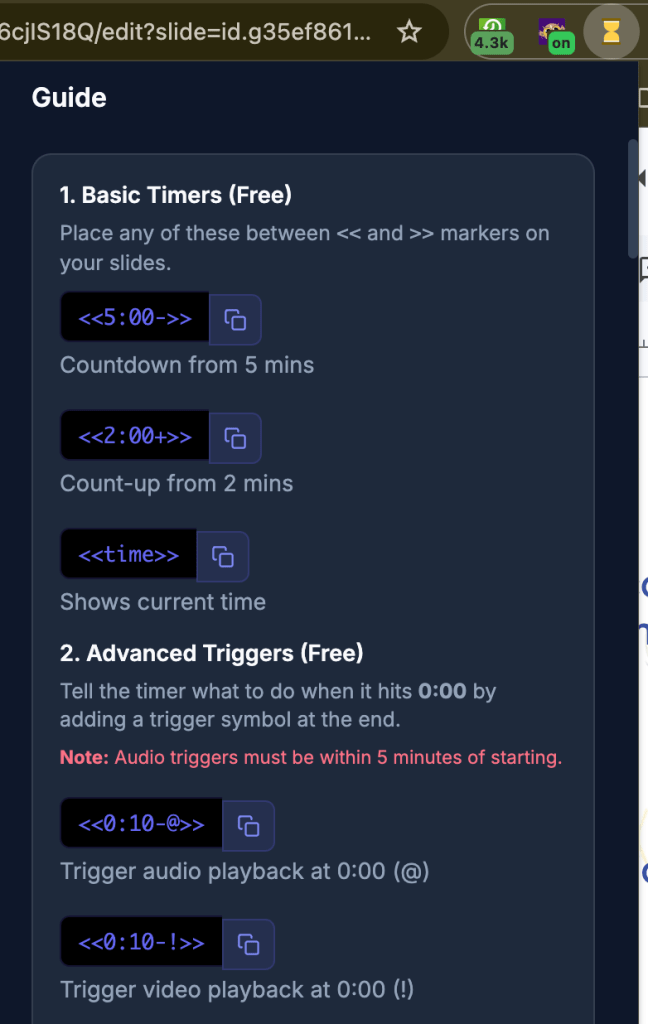
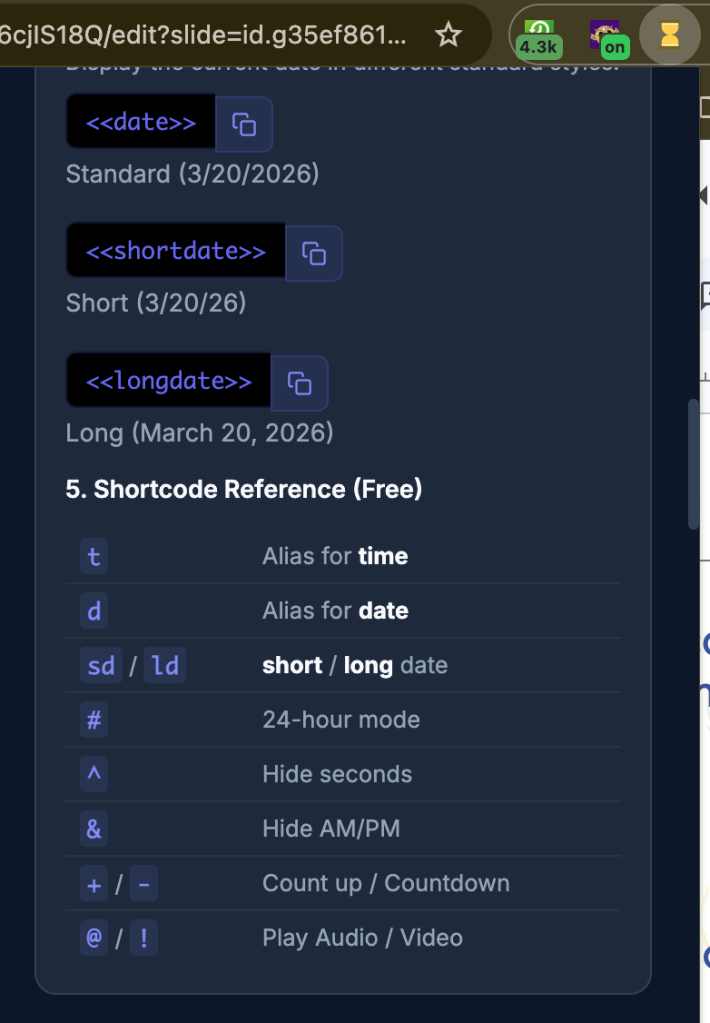
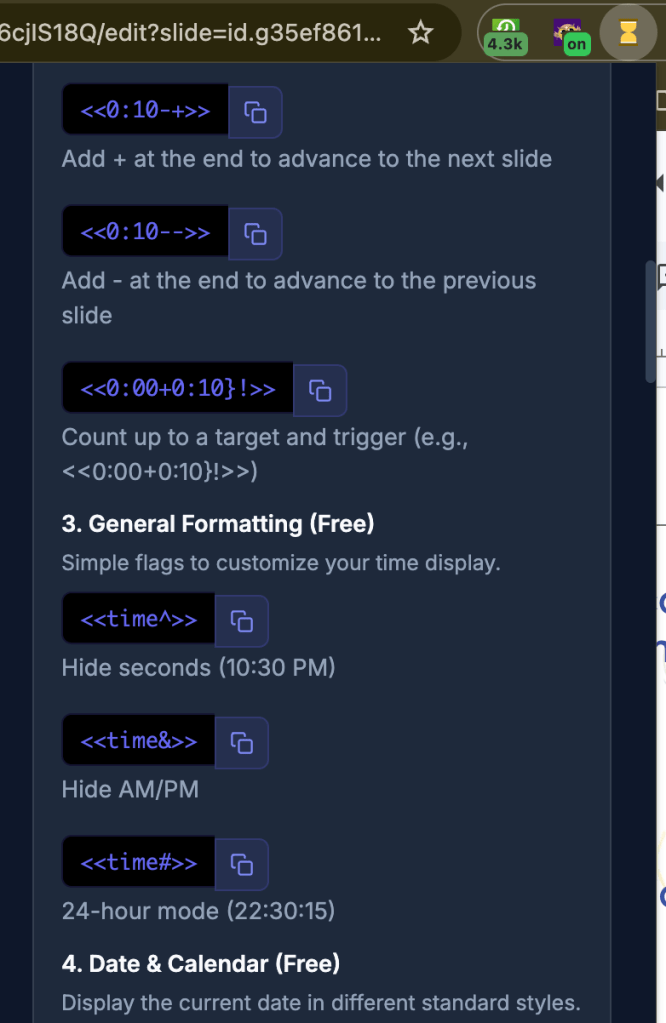
For instance, you can create a countdown timer for a five-minute brain break or a small group activity. You can also set a count-up timer to track how long a specific discussion takes. Additionally, you can display a real-time clock on your slides, which is particularly helpful during longer presentations to ensure you are staying aligned with the overall schedule of the day.
Practical Classroom Applications
Integrating these timers can significantly change the energy of your classroom. During a lesson, a visible countdown timer provides students with a clear expectation of how much time remains for a task, which helps them develop better time-management skills. For the educator, having a clock or timer on the screen acts as a gentle, non-intrusive reminder to wrap up a section and move forward.
By using this simple tool, you can protect the time needed for every part of your lesson. It allows you to address questions and engage in storytelling with the confidence that you have a reliable visual cue to keep you on track.
This blog post was drafted with the help of Google Gemini to help organize and flesh out my thoughts and ideas regarding how to use the Slides Timer Chrome Extension to help with pacing of lessons and presentations. I also used NotebookLM to generate a brief audio overview, perfect for those who want to listen and learn on the go.
If you enjoy this blog, you’ll love our new book, History Matters in an AI Era. Available now on Amazon, this book shares practical, research-based strategies for integrating technology into history lessons. You’ll learn how to use technology to increase student engagement and curiosity. Click here to get your copy today.

Leave a comment