
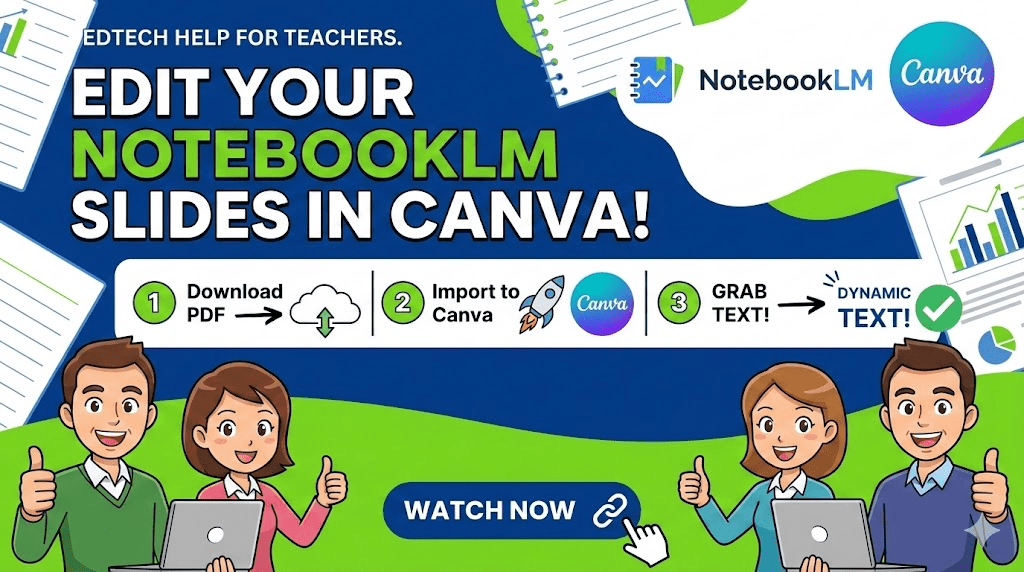
- The Problem: NotebookLM exports slides as static images, making direct text edits impossible in PowerPoint or PDF.
- The Fix: Upload the PDF to Canva and use the Magic Studio “Grab Text” tool to unlock and edit the content.
- The Benefit: Once converted, text stays editable, letting you customize fonts and details for your specific classroom needs.
NotebookLM has become an incredibly popular tool for educators looking to quickly synthesize information into visually appealing slide decks. While the platform is excellent for generating content, teachers often find themselves in a difficult position when they need to make specific manual adjustments. When you export your work from NotebookLM as a PowerPoint or a PDF, the resulting file typically treats each slide as a static image. This means you cannot simply click on a text box to fix a typo or add a personalized classroom detail, which can be frustrating when you are trying to tailor a presentation for your students.
Fortunately, there is a simple and effective workaround using Canva that allows you to regain full creative control over your slides. By leveraging Canva’s Magic Studio features, you can transform these static images back into editable text. This process is a game changer for teachers who love the AI-generated layouts of NotebookLM but need the flexibility to tweak the final product before presenting it to a class.
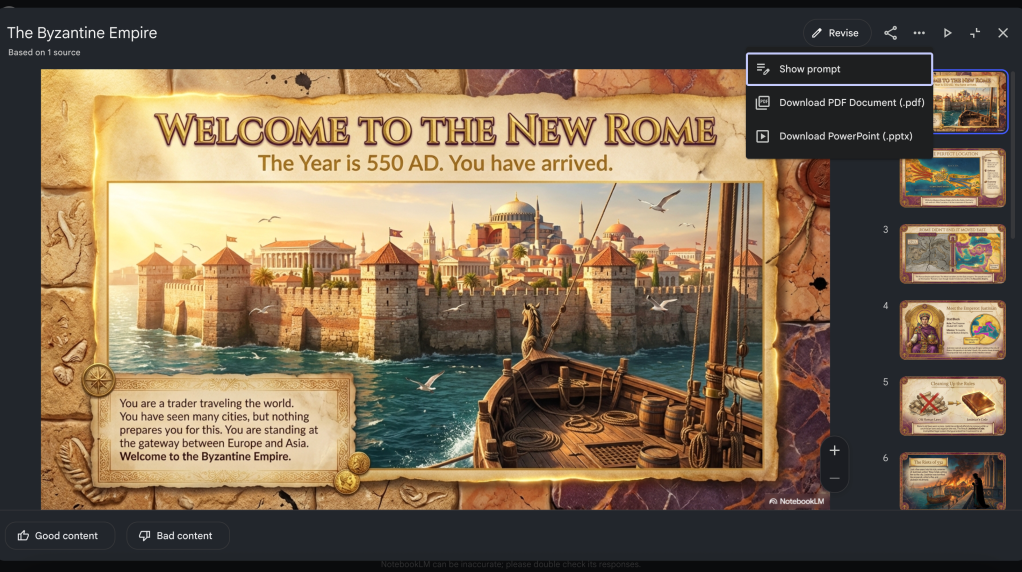
The first step in this process is to head to NotebookLM and locate the slide deck you have created. Instead of worrying about the PowerPoint export, go ahead and download the presentation as a PDF. Once the file is saved to your computer, open Canva and navigate to the create button in the top left corner. Select the option to upload a file and bring your NotebookLM PDF into your Canva account. It may take a moment for the file to process, but once it appears in your uploads, you can open it to begin the editing phase.
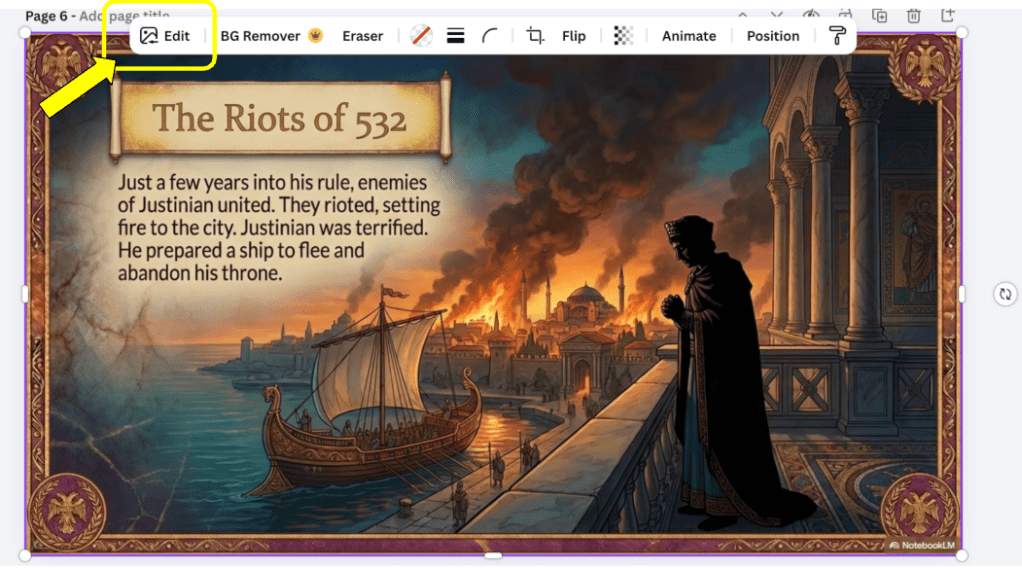
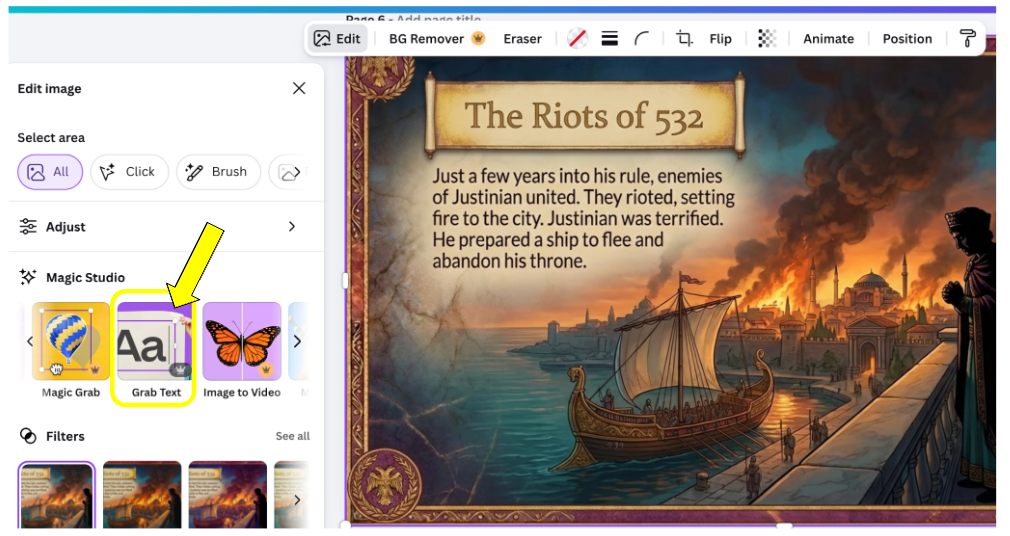
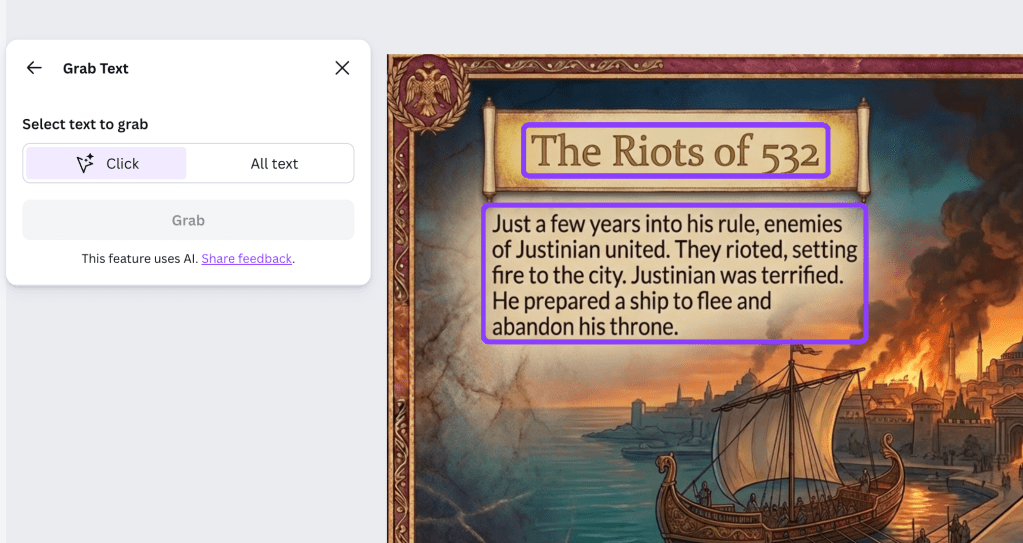
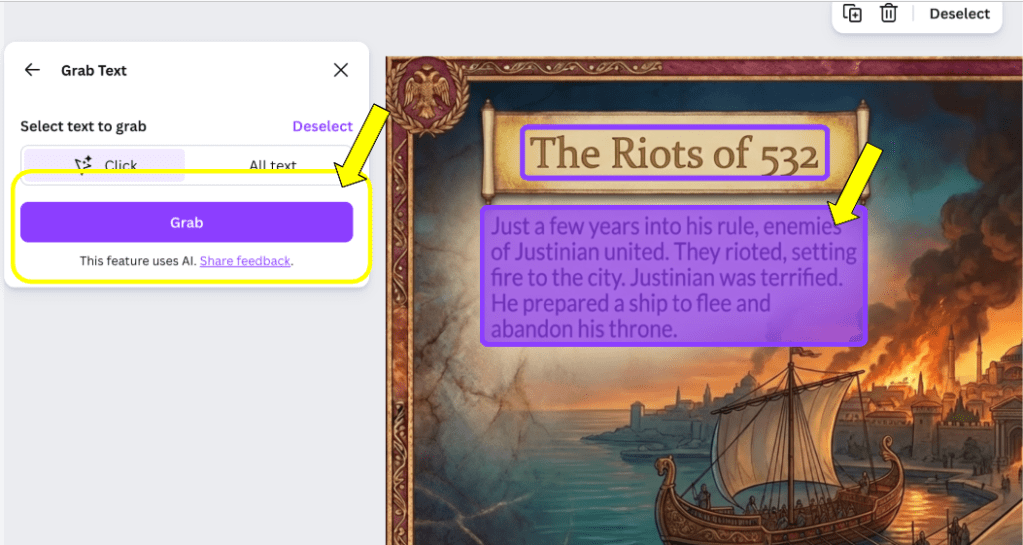
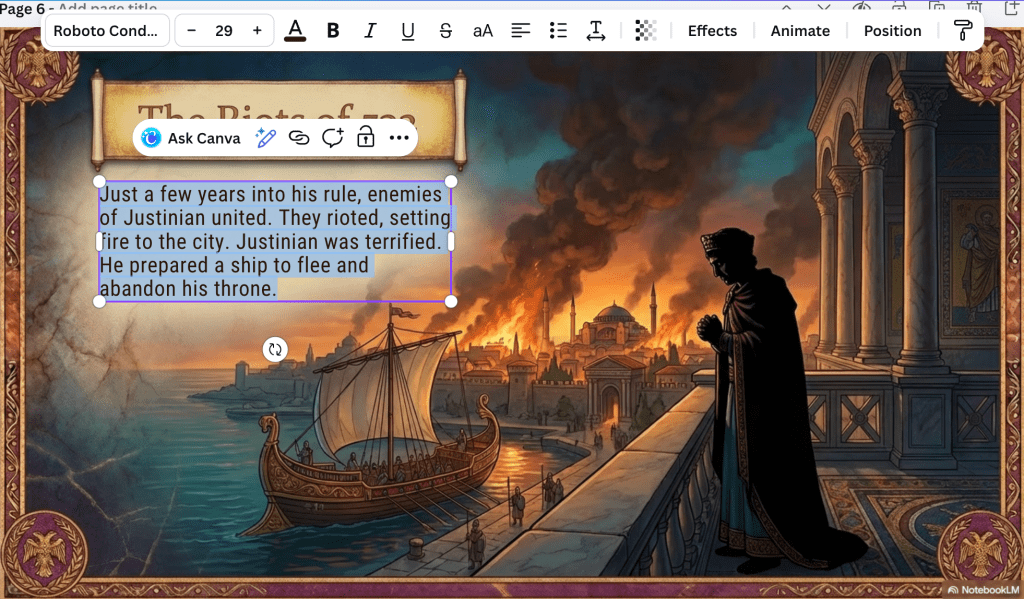
To make the text editable, click on any slide and look for the edit option in the top toolbar. Within the Magic Studio menu, you will find a tool called Grab Text. When you select this, Canva scans the slide to identify characters and words. It will then place a blue box around the text areas it has recognized. You can then click on a specific text box and select the grab function. Within seconds, that static image of words becomes a fully functional text box.
You will need to repeat this grab text process for each individual text box on a slide the first time you work with it. However, the great news is that once you have converted a section to editable text, it stays that way. You can change fonts, adjust colors, remove bolding, or underline key terms to emphasize important concepts for your students. If you return to the slide later, you will find that the text remains ready for any further updates.
This workflow allows you to enjoy the best of both worlds. You get the sophisticated, data-driven content generation from NotebookLM and the unmatched design flexibility of Canva. It is a practical way to ensure your instructional materials are both professional and perfectly suited to your unique teaching style.
This blog post was drafted with the help of Google Gemini to help organize and flesh out my thoughts and ideas regarding how to use Canva to edit slides generated by NotebookLM. I also used NotebookLM to generate a brief audio overview, perfect for those who want to listen and learn on the go.
If you enjoy this blog, you’ll love our new book, History Matters in an AI Era. Available now on Amazon, this book shares practical, research-based strategies for integrating technology into history lessons. You’ll learn how to use technology to increase student engagement and curiosity. Click here to get your copy today.


Leave a comment