
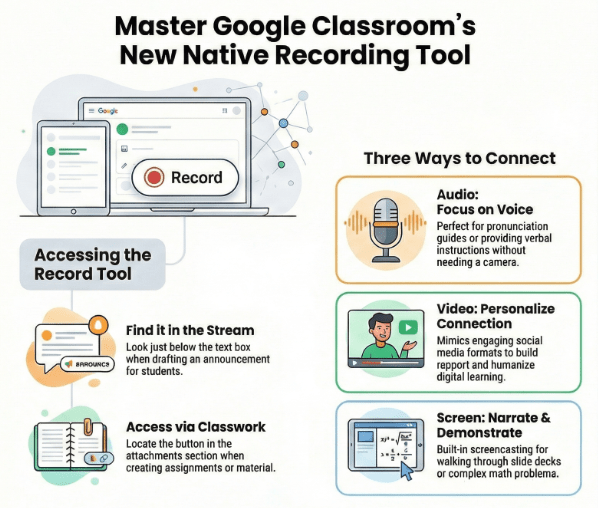
- Streamlined Access: Built directly into the Stream and Classwork sections, removing the need for external apps or paid subscriptions.
- Versatile Options: Includes audio for verbal messages, video for personal connection, and screen recording for narrated tutorials.
- Enhanced Support: Facilitates multimodal instruction, making it easier to reach English language learners and provide clear, narrated guidance.
For years, educators have looked for the best ways to bridge the gap between digital assignments and personal connection. Many of us have navigated a patchwork of third-party apps and paid subscriptions to record lessons, explain complex topics, or simply send a friendly greeting to our students. These tools have served us well, but they often require extra steps or personal financial investment to unlock the best features.
There is exciting news for those who use Google Classroom as their primary hub. A native Record feature is currently rolling out, allowing you to create audio and video content directly within the platform. This update simplifies the process of creating multi-modal content and keeps everything in one secure location.
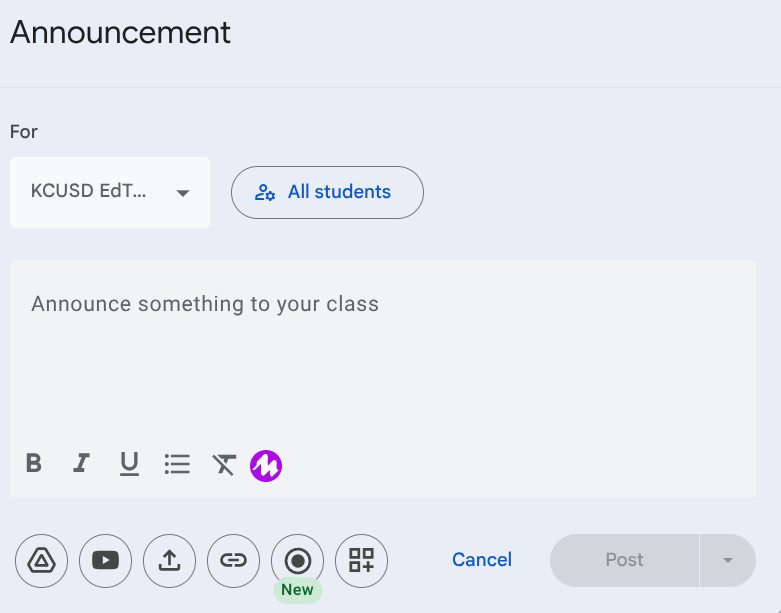
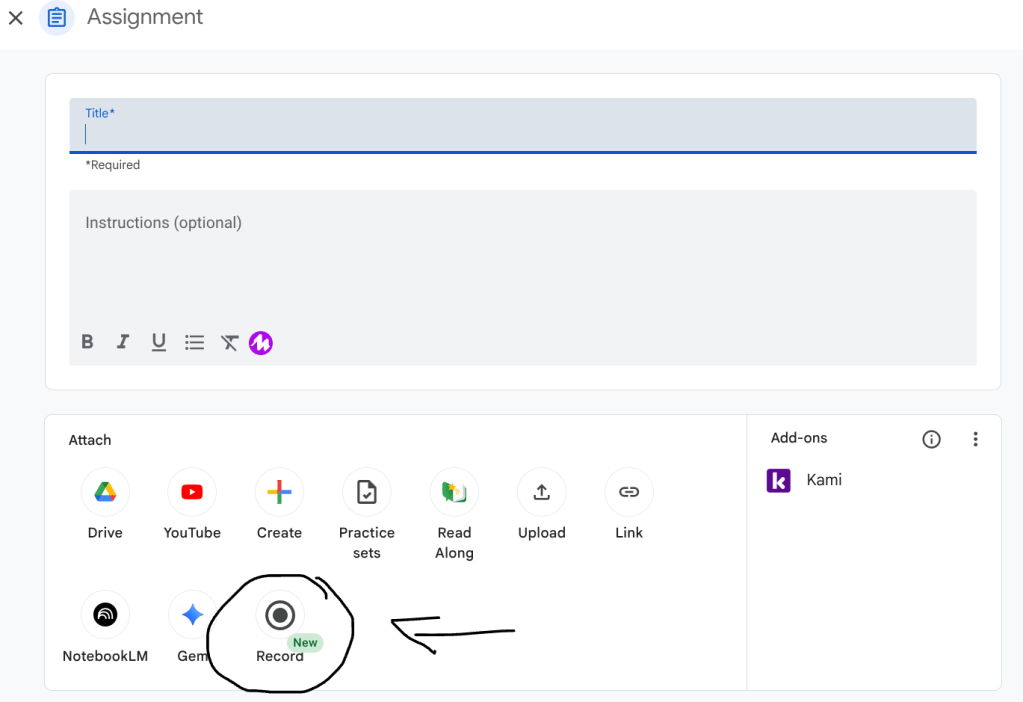
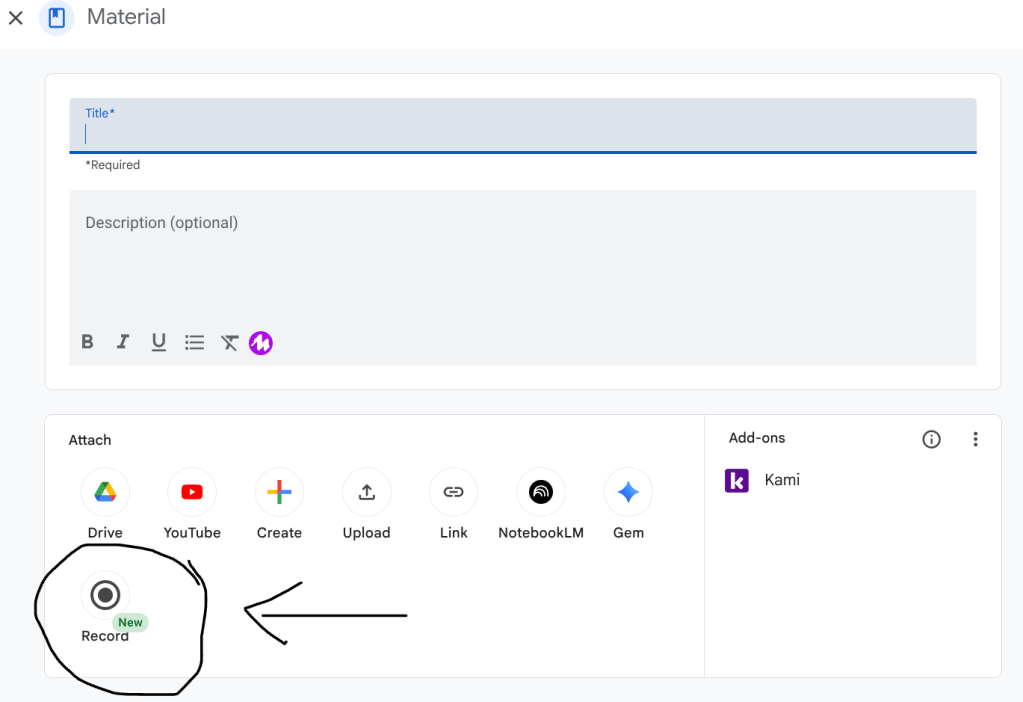
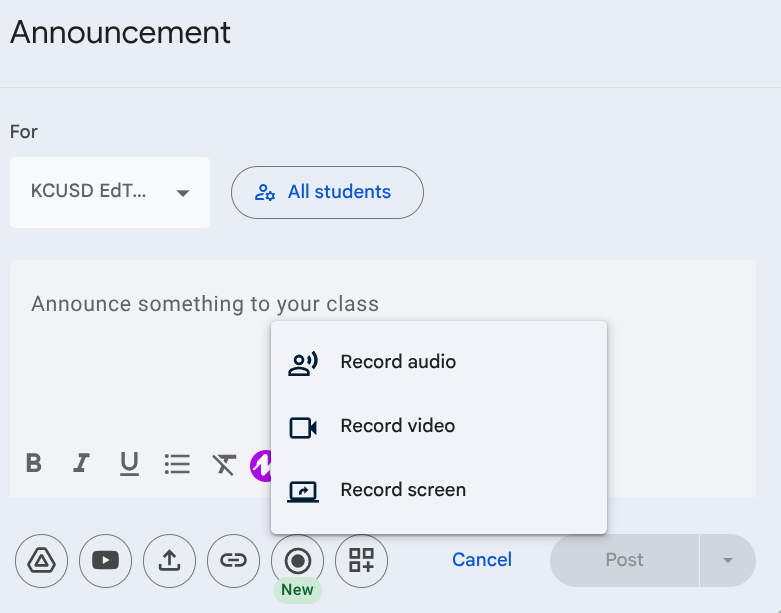
You can find the new Record button in two primary areas. In the Stream, it appears just below the text box when you are drafting an announcement. In the Classwork tab, you will see it located in the attachments section when creating an assignment or posting material. Clicking this button opens a menu with three distinct options: Record Audio, Record Video, and Record Screen.
The Record Audio option is a fantastic way to provide verbal instructions or messages without the need for a camera. This is particularly helpful for teachers who want to share a quick announcement or for any educator looking to provide a quick listening task for English language learners. It allows students to focus entirely on the sound of your voice.
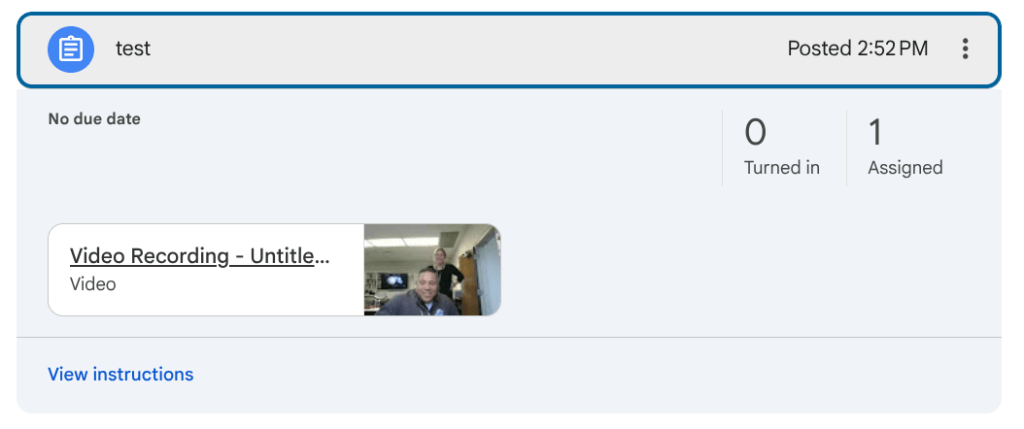
If you want to add a more personal touch, the Record Video option lets you speak directly to your students. Many students are accustomed to following creators on social media, and using video for educational announcements and academic content can mimic that engaging format. It helps build rapport and ensures your students see the person behind the screen.
The Record Screen option functions as a built-in screencasting tool. This is perfect for narrating a slide deck, walking through a complex math problem, or performing a digital read-aloud. Instead of just reading text on a screen, students can follow your cursor and listen to your explanation in real time.
This integration is a significant step toward making digital classrooms feel more interactive and accessible. By using these built-in tools, you can save time and focus more on what matters most: supporting and communicating with your students in the ways they learn best.
This blog post was drafted with the help of Google Gemini to help organize and flesh out my thoughts and ideas regarding how to access and use the new Record function in Google Classroom. I also used NotebookLM to generate a brief audio overview, perfect for those who want to listen and learn on the go.
If you enjoy this blog, you’ll love our new book, History Matters in an AI Era. Available now on Amazon, this book shares practical, research-based strategies for integrating technology into history lessons. You’ll learn how to use technology to increase student engagement and curiosity. Click here to get your copy today.

Leave a comment