
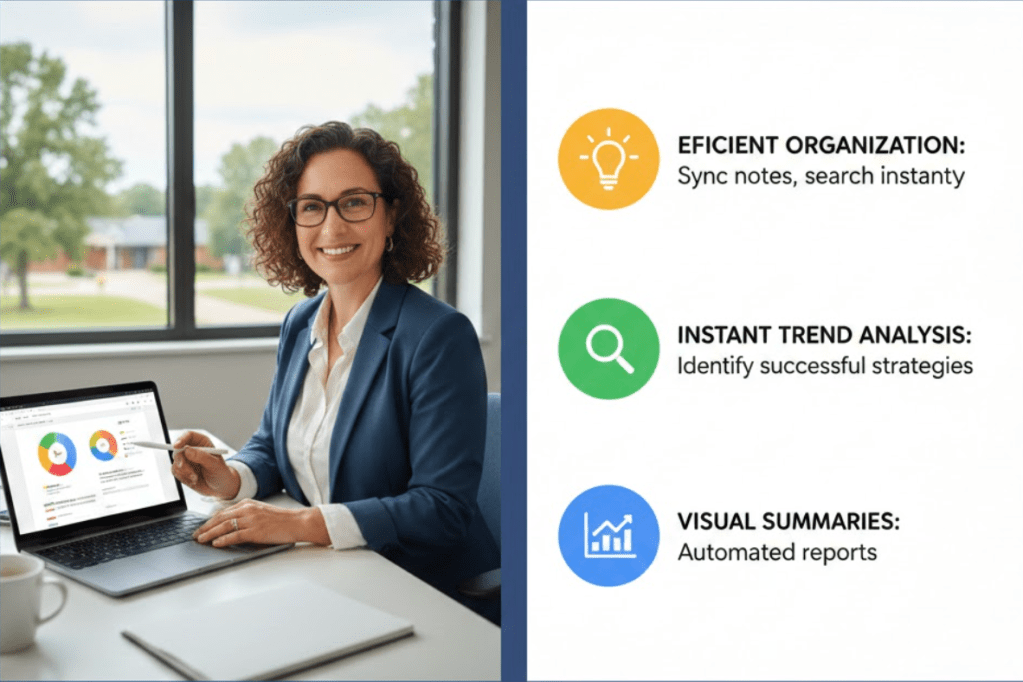
- Efficient Organization: Transform scattered notes into a searchable database by syncing Google Docs or scans with NotebookLM for instant access to coaching history.
- Instant Trend Analysis: Use the chat feature to quickly identify successful strategies and tech trends across different classrooms and school sites.
- Automated Visual Summaries: Create custom infographics and slide decks through the Studio to provide administrators with professional, real-time snapshots of progress.
As an instructional coach, my days are spent moving between dozens of schools and supporting hundreds of teachers. The sheer volume of information can be overwhelming. To provide the best support, I take detailed notes on every coaching interaction. These notes are essential for guiding next steps when I return to a site and for tracking which strategies are effectively working across different locations. This allows me to share successful tools, ideas, and strategies with other educators who might benefit from them.
Whether you are an instructional coach, an administrator, a counselor, or an RSP teacher, managing notes and tracking trends is a universal challenge. Since I began using NotebookLM as a database for my coaching logs, this workflow has become significantly more efficient.
Organizing Your Digital Workspace
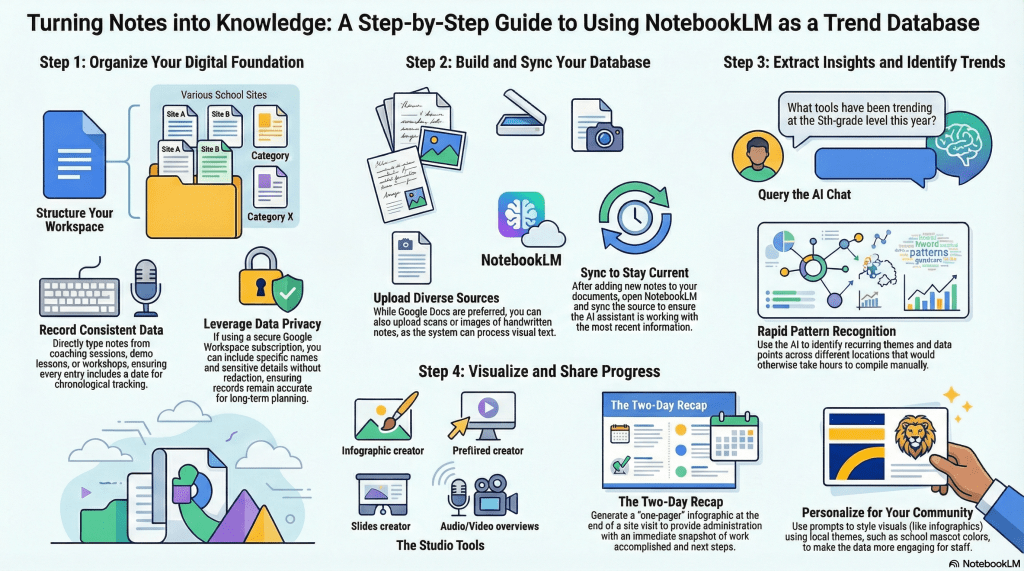
The foundation of a good tracking system is organization. For my workflow, each school site has its own dedicated Google Doc. Within that document, I use tabs for each department and individual teacher. Every time I meet with a teacher or a department, I record the date and type my notes directly into the document. These entries might cover coaching sessions, demo lessons, or professional development workshops.
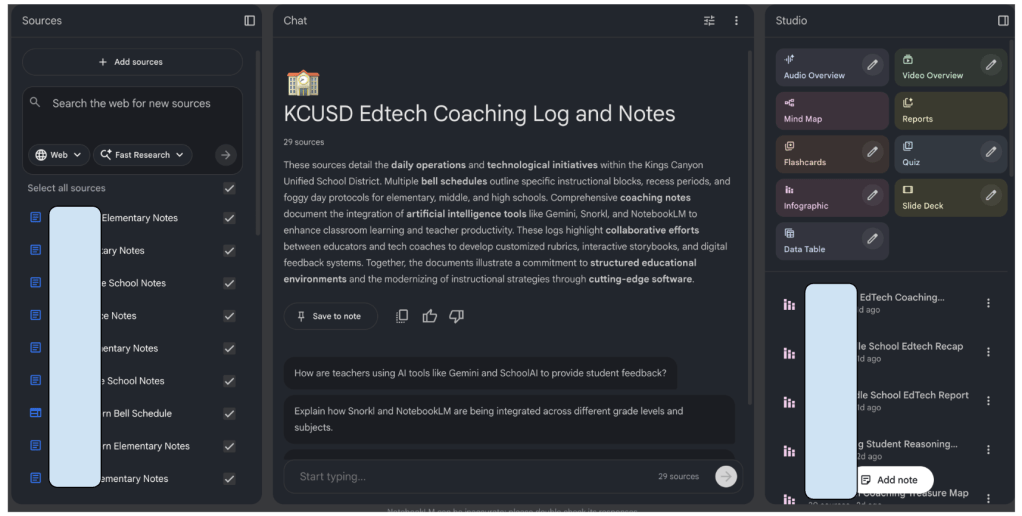
Because our Google Workspace subscription guarantees data privacy, I can include specific names and details without needing to redact information. This ensures the records remain accurate and useful for long-term planning. Each of these school-specific documents is then entered as a source into NotebookLM.
Keeping Data Current and Accessible
The true power of this system lies in how easily the data stays updated. When I add new notes to a Google Doc after a day of coaching, I simply open NotebookLM and sync the source. This ensures that the AI assistant is always working with the most recent information.
With this database in place, I can ask specific questions about my notes rather than scrolling through pages of text. For instance, when meeting with administrators to discuss which tools and strategies have been trending at a specific grade level over the year, I use the chat feature. It can quickly identify patterns and pull out data that could otherwise take hours to compile manually.
Visualizing Progress with the Studio
Beyond just answering questions, the Studio tools within NotebookLM allow for the creation of helpful visualizations. There are four specific tools that have become essential for my role: the Infographic creator, the Slides creator, and the audio and video overviews.
The Infographic tool is perfect for creating a “one-pager” that summarizes key points. If I need more detailed data visualizations, the Slides creator helps build a presentation-ready format. The audio and video overviews provide media versions of the data, which can offer a different perspective on the trends occurring across school sites.
Practical Application: The Two-Day Recap
My schedule typically involves supporting a school for two consecutive days before moving to the next site. At the end of those two days, I sync my updated notes and ask the Infographic tool to create a recap of the support provided during that window.
To make the information more engaging and personal to the community, I prompt the tool to create the recap using the style and color scheme of the school mascot. Before I even leave the building, I send this infographic to the administration and staff. It provides them with an immediate snapshot of the work we accomplished and a clear view of our next steps.

Getting Started with Your Own Database
If you are interested in trying this workflow, the first step is to upload your preferred method of note-taking to NotebookLM. While I prefer Google Docs, the platform is flexible. If you take handwritten notes, you can upload scans or images of those pages and the system will still be able to process the information.
Once your notes and other relevant resources are added, start using the chat feature to extract insights. Experiment with the Studio tools to see which visualizations best serve your specific needs. It is important to remember that you should only upload documents you own or those that are open-source and public. Avoid uploading copyrighted materials.
By turning your daily notes into a searchable, visual database, you can spend less time searching for information and more time providing meaningful support to your colleagues and students.
This blog post was drafted with the help of Google Gemini to help organize and flesh out my thoughts and ideas regarding how I use NotebookLM to organize and streamline my instructional coaching workflow. I also used NotebookLM to generate a brief audio overview, perfect for those who want to listen and learn on the go.
If you enjoy this blog, you’ll love our new book, History Matters in an AI Era. Available now on Amazon, this book shares practical, research-based strategies for integrating technology into history lessons. You’ll learn how to use technology to increase student engagement and curiosity. Click here to get your copy today.

Leave a comment