
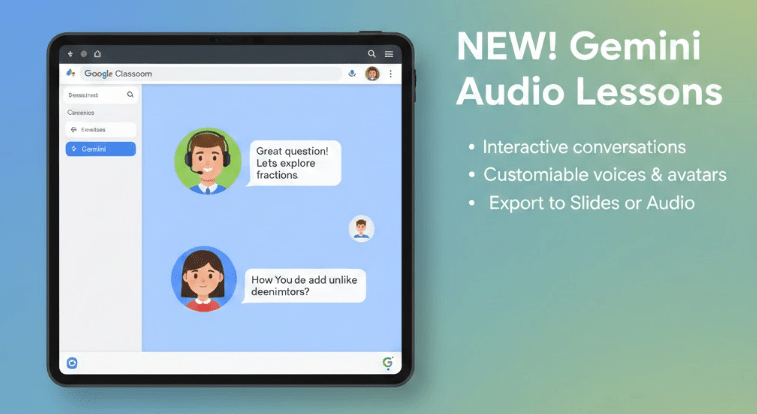
- Gemini in Google Classroom now transforms text into interactive, conversational audio lessons featuring customizable avatars and voices.
- The tool generates editable learning objectives and a text-style transcript that you can preview and vet for accuracy.
- Finished lessons export as audio files or Google Slides, allowing students to read along with the dialogue as they listen.
- Would you like me to suggest a few relevant hashtags for this post?
Google Classroom continues to evolve by providing tools that bridge the gap between static content and interactive learning. A recent update introduces a feature within the Gemini tab that allows teachers to transform written content into dynamic audio lessons. These lessons are designed to sound like a natural conversation between a teacher and a student, making complex topics feel more approachable and engaging for learners at any level.
To get started, navigate to your Google Classroom dashboard and select the Gemini tab located on the left side of the screen. From there, click the button labeled Create Audio Lesson. The tool offers flexibility in how you build your content; you can simply input a specific grade level and topic, or you can copy and paste custom text that you want the lesson to focus on.
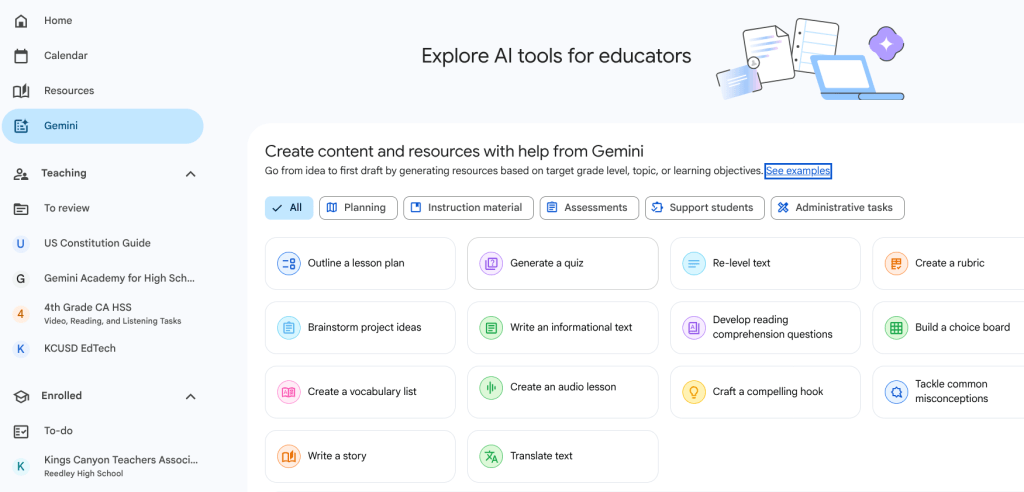
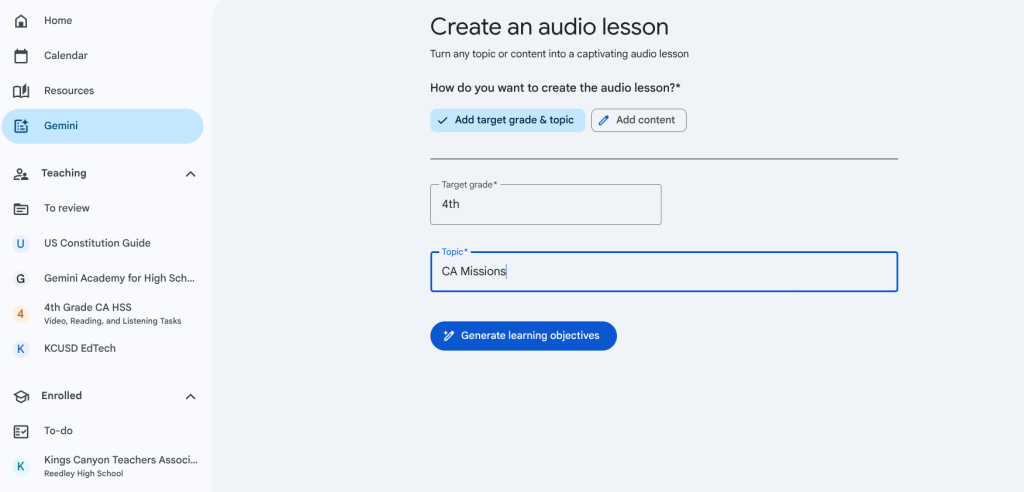
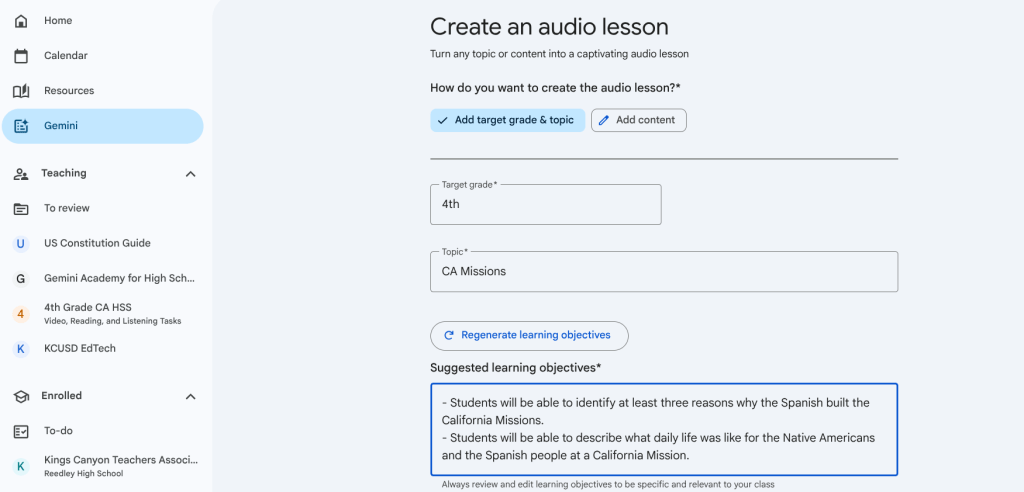
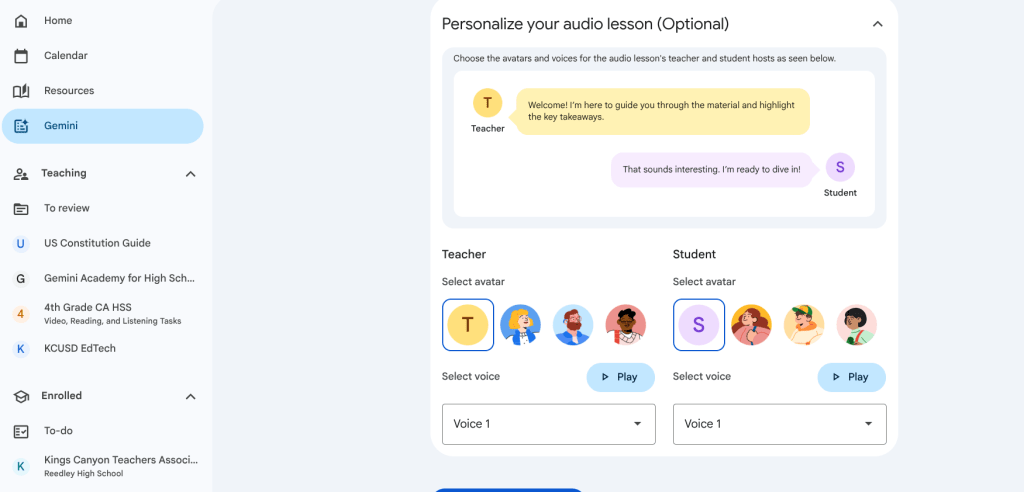
Once you provide your source material or grade level with topic, Gemini generates a set of editable learning objectives. This step ensures that the final product aligns perfectly with your instructional goals. You also have the creative freedom to customize the voices and avatars used in the lesson, allowing you to tailor the experience to suit your classroom’s personality. After you are satisfied with the objectives and settings, you can generate the lesson.
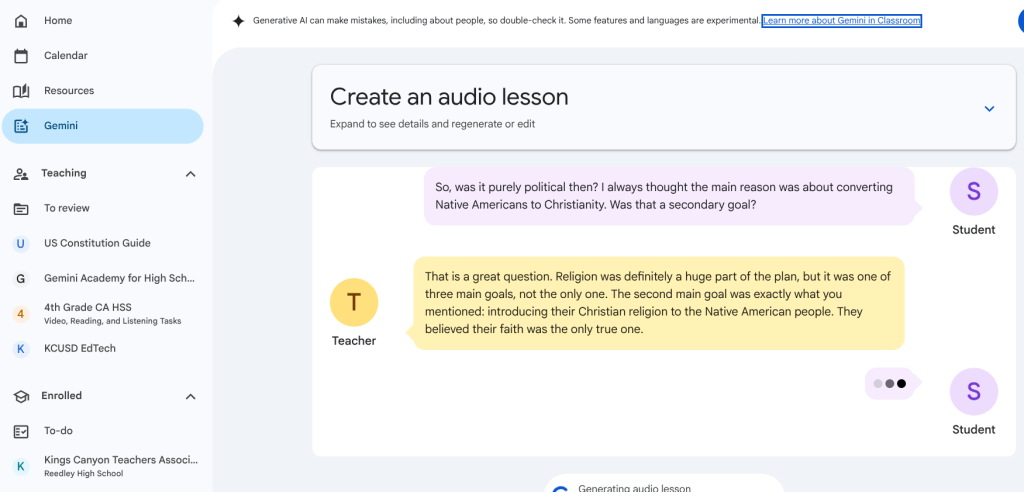
The generation process takes about a minute or two. As it works, you will see the lesson build in real time, appearing like a text message conversation between two people. This visual format helps you track the flow of the dialogue as it is created. When the lesson is complete, a play button appears at the bottom so you can preview and vet the entire conversation for accuracy and tone.

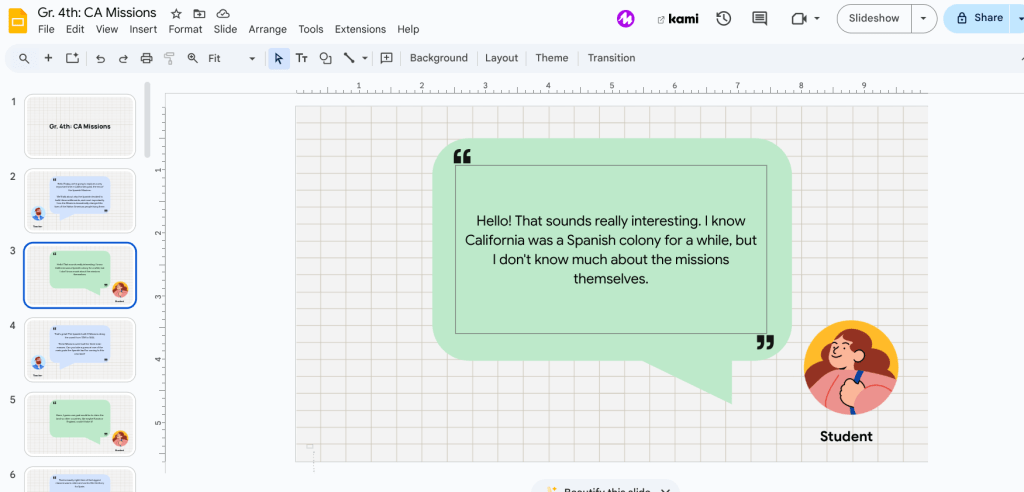
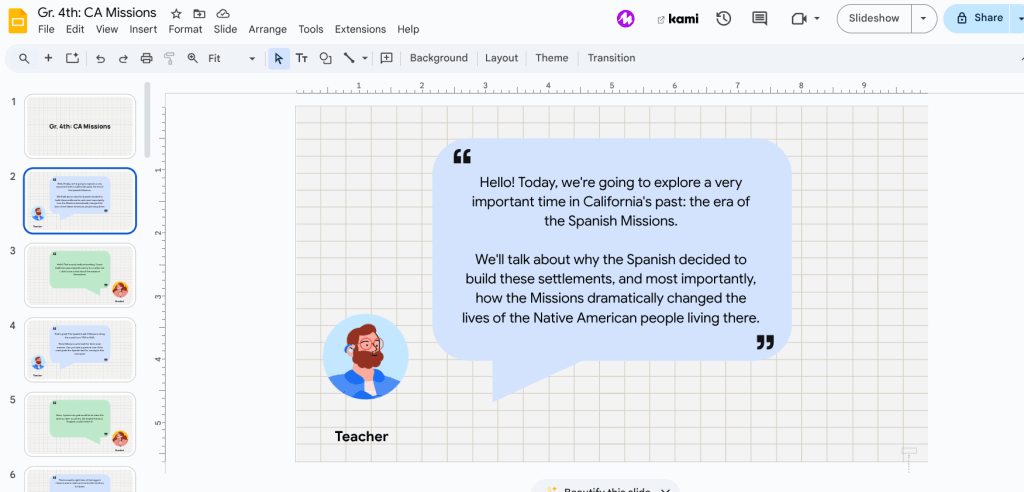
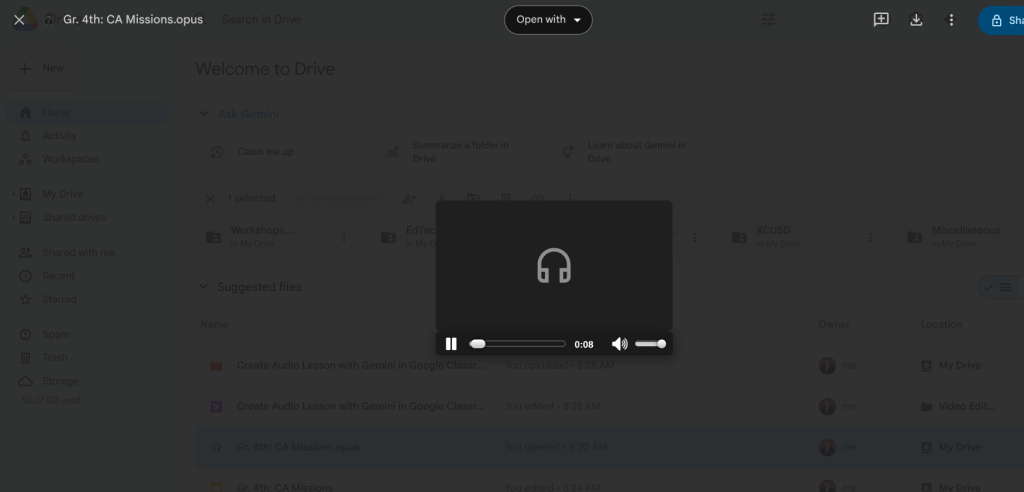
Sharing the lesson with your students is straightforward thanks to versatile export options. You can save the audio as an .opus file directly to your Google Drive, or you can export the lesson as a Google Slides presentation. Choosing the Slides option is particularly helpful for supporting literacy and comprehension, as the tool places each line of dialogue on its own slide alongside the speaker’s avatar. This allows students to follow along visually while they listen to the audio.
Watch the video below to see this feature in real-time.
By integrating this tool, you can provide students with a fresh way to consume information that feels personal and interactive. Whether used for a flipped classroom model or as a supplemental resource for students who benefit from auditory learning, this feature offers a practical way to enhance your digital teaching toolkit.
This blog post was drafted with the help of Google Gemini to help organize and flesh out my thoughts and ideas regarding how to use the new Gemini feature in Google Classroom for creating audio lessons. I also used NotebookLM to generate a brief audio overview, perfect for those who want to listen and learn on the go.
If you enjoy this blog, you’ll love our new book, History Matters in an AI Era. Available now on Amazon, this book shares practical, research-based strategies for integrating technology into history lessons. You’ll learn how to use technology to increase student engagement and curiosity. Click here to get your copy today.


Leave a comment